2Slides Team
5 min read

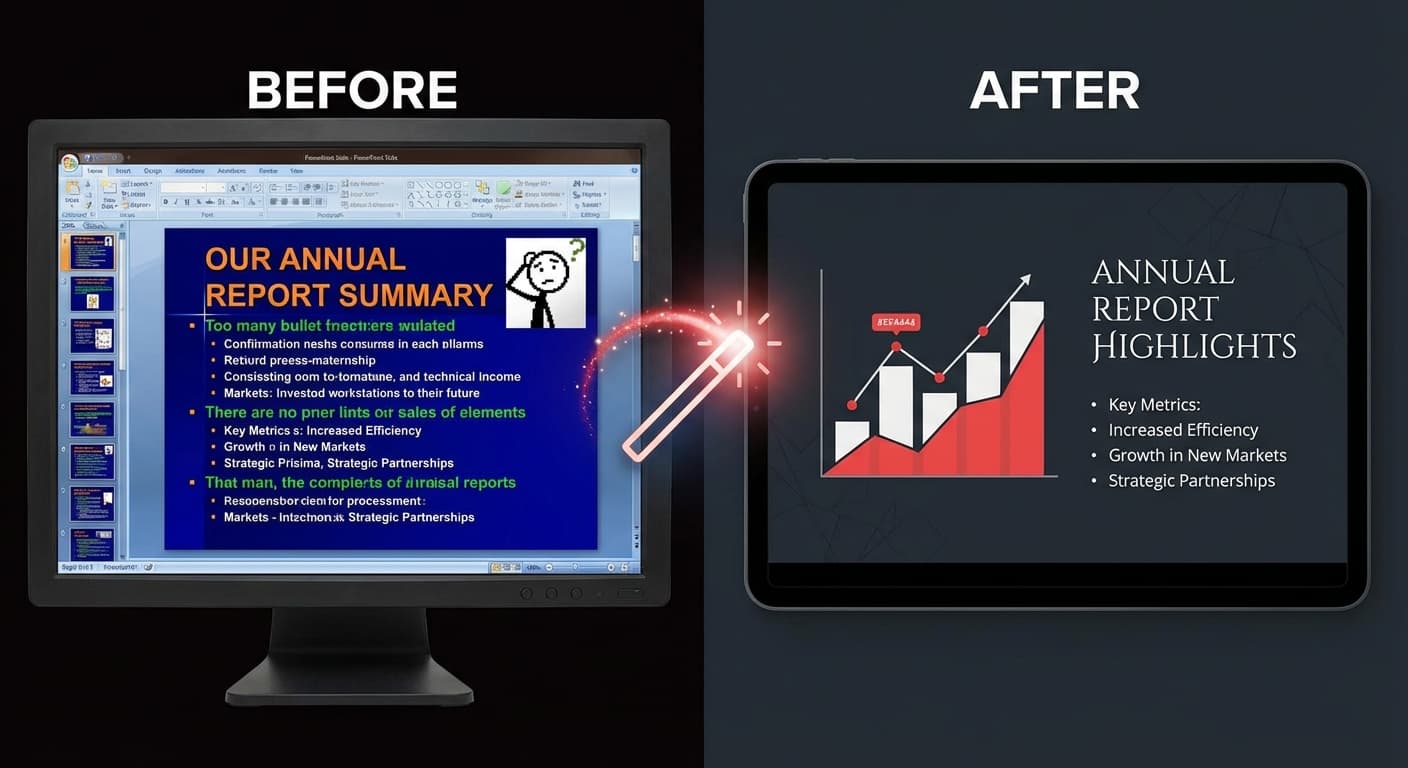
We've all received that deck — the one with 12 bullet points per slide, clip art from 2005, inconsistent fonts, and colors that clash. Bad slides undermine good ideas. AI can transform ugly presentations into professional ones in minutes.
| Problem | What It Looks Like | Why It Happens |
|---|---|---|
| Text overload | 200+ words per slide | Presenter uses slides as a document |
| Inconsistent design | Different fonts, colors, layouts on every slide | Multiple contributors, no template |
| Bad color choices | Clashing colors, low contrast | No design training |
| Clip art / stock photos | Generic, dated visuals | Using PowerPoint's built-in library |
| No visual hierarchy | Everything the same size and weight | No understanding of slide design |
The fastest way to transform ugly slides:
"Redesign this presentation with clean, modern layouts.
Keep all key content but reduce text density.
Use clear visual hierarchy and professional typography."If you have a design you love (from another deck, a website, or Dribbble):
For decks that are mostly fine but have problem slides:
Before: 15 bullet points, 3 font sizes, no visual structure AI Prompt: "Restructure into a 2x2 strategic framework with key points only" After: Clean matrix layout, 4 quadrants, 2-3 words per point, professional typography
Before: Raw Excel table pasted into PowerPoint, 50 rows of data AI Prompt: "Create executive summary with top 5 metrics as large numbers, include trend arrows" After: 5 large KPI cards with arrows, clean data visualization, clear hierarchy
Before: 20 slides from 5 different people, every slide uses different fonts and colors AI Prompt: "Unify design across all slides with consistent corporate theme" After: Single cohesive design system, consistent typography, uniform color palette
When you redesign with AI, it automatically applies professional design principles:
For these cases, manual editing in PowerPoint is still the way to go.
The AI restructures and condenses your content for better slide presentation. It maintains the meaning but may rephrase for clarity and brevity. Always review the output for accuracy.
Yes — redesign specific slides separately and insert them back into your original deck in PowerPoint.
Upload the entire PDF. The AI handles long documents well, but consider adding a prompt like "focus on the key 15 slides" to get the most impactful redesign.
Export your Google Slides as PDF (File → Download → PDF), upload to 2Slides, then download the redesigned .pptx. You can import it back into Google Slides.
Transform your ugly slides — upload to 2Slides and see the before & after difference.
Create stunning AI-powered presentations in seconds. Transform your ideas into professional slides with 2slides AI Agent.
Try For FreeYour AI Agent for slides. Save time, shine faster with intelligent presentation creation.




© 2026 2slides. All rights reserved.