2Slides Team
13 min read

By Amy Chen, Digital Workflow Specialist | April 1, 2026
Creating an AI-generated presentation is only half the job. The other half is getting it into the right format for your audience, platform, and workflow. Whether you need an editable PowerPoint file for a team collaboration session, a locked-down PDF for a client deliverable, individual PNG slides for social media, or a full MP4 video for an asynchronous briefing, choosing the correct export format directly affects how your content is received and used. Modern AI presentation makers like 2Slides now support multiple export paths natively, eliminating the need for manual conversion tools. This guide walks you through every major export format, compares support across leading AI slide platforms, and gives you a clear decision framework so you never deliver a presentation in the wrong format again.
Before diving into workflows, here is a side-by-side look at the four primary export formats available from AI presentation tools today.
| Feature | PPTX | PNG (per slide) | MP4 Video | |
|---|---|---|---|---|
| Editability | Fully editable in PowerPoint, Keynote, Google Slides | View-only; no native editing | View-only; single images | View-only; linear playback |
| Typical File Size (20 slides) | 5-15 MB | 2-8 MB | 1-3 MB per slide | 30-120 MB |
| Best Use Case | Team collaboration, iterative editing, template reuse | Client deliverables, archiving, printing | Social media posts, thumbnails, embedding in documents | Asynchronous presentations, webinars, social video |
| Compatibility | PowerPoint, Google Slides, Keynote, LibreOffice | Universal (any device, any OS) | Universal (any image viewer) | Universal (any video player) |
| Preserves Animations | Yes | No | No | Yes (baked into video) |
| Offline Viewing | Yes | Yes | Yes | Yes |
| Ideal Audience | Colleagues, co-editors | Executives, external stakeholders | Marketing teams, designers | Remote audiences, social followers |
The AI presentation landscape has matured significantly since early tools that could only output basic slide decks in a single format. In 2026, the export capabilities of an AI slide tool are a genuine differentiator.
Most AI presentation platforms fall into one of three tiers when it comes to export support:
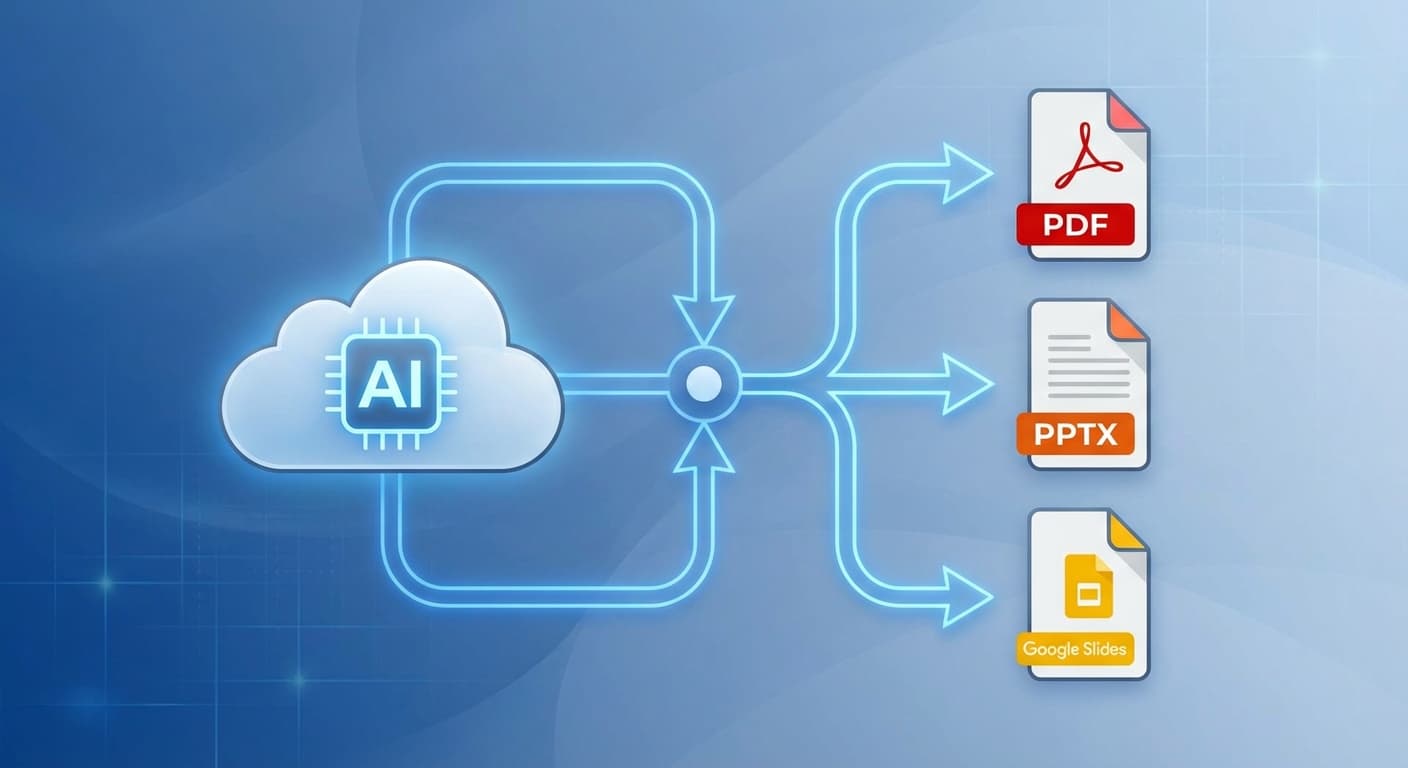
Tier 1 -- Native multi-format export. Tools like 2Slides generate PowerPoint files natively and also offer PDF, PNG, and MP4 video export directly from the platform. There is no third-party conversion step, which means fonts, layouts, and brand elements stay intact.
Tier 2 -- Primary format plus limited conversion. Platforms such as Gamma and Beautiful.ai produce their own proprietary format first, then offer PDF or PPTX download as a secondary option. The conversion can sometimes introduce formatting inconsistencies, especially with complex layouts or custom fonts.
Tier 3 -- Single-format output. Some lighter AI tools output only PDF or only a web-based presentation with no downloadable file at all, forcing users to rely on screen capture or third-party converters.
Understanding which tier your tool falls into helps set expectations before you even begin building your deck. If export flexibility matters to your workflow, choose a Tier 1 tool from the start. 2Slides, for instance, was built with PowerPoint as its native output format, which means the PPTX file you download is not a conversion -- it is the original artifact, with full fidelity to 1,500+ built-in templates.
PPTX remains the most versatile export format because it preserves full editability. Here is how to export from a typical AI tool, using 2Slides as the primary example.
For teams that rely on Microsoft 365 or Google Workspace, PPTX is almost always the right default choice. Check AI presentation tools pricing to compare how many PPTX exports each platform includes in its plan -- 2Slides starts at $5 with full export access.
PDF is the universal "read-only" format. When you need to lock down content, ensure consistent rendering across devices, or prepare a print-ready file, PDF is the standard.
One important limitation: PDF does not preserve slide animations or transitions. If your presentation relies on build effects, consider exporting to MP4 video instead.
Google Slides does not natively support direct import from most AI presentation tools, but the PPTX bridge makes the workflow seamless.
This PPTX-to-Google-Slides pipeline is the standard workflow for teams that use Google Workspace but want access to the broader template selection and AI capabilities of tools like 2Slides.
Video export is the fastest-growing feature in AI presentation tools. It transforms a static deck into a shareable, watchable asset -- ideal for social media, learning management systems, and asynchronous communication.
2Slides offers a built-in video generation feature that combines your slides with AI-generated voiceover narration. Here is the process:
The video export costs 20 credits per slide on 2Slides. For a full breakdown of video creation options, see our guide to the best AI tools for creating presentation videos.
Not every platform supports every format. Here is how the five most popular AI presentation tools compare as of April 2026.
| Feature | 2Slides | Gamma | SlidesAI | Canva | Beautiful.ai |
|---|---|---|---|---|---|
| Native PPTX Export | Yes (native output) | Yes (converted) | Yes (Google Slides add-on) | Yes (converted) | Yes (converted) |
| PDF Export | Yes | Yes | Limited | Yes | Yes |
| PNG per Slide | Yes | No | No | Yes | No |
| MP4 Video Export | Yes (with AI voiceover) | No | No | Yes (limited) | No |
| Google Slides Support | Via PPTX import | Via PPTX import | Native (add-on) | Via PPTX import | Via PPTX import |
| Number of Templates | 1,500+ | 100+ | 50+ | 10,000+ (general design) | 60+ |
| API Export Support | Yes (REST API) | No | No | Limited | No |
| Languages Supported | 22+ | 10+ | 8+ | 100+ (general design) | English only |
| Starting Price | $5 | $10/month | $10/month | Free (limited) | $12/month |
Key takeaway: 2Slides and Canva offer the broadest export format support. However, 2Slides is purpose-built for presentations with native PPTX output and a REST API for automated workflows, while Canva is a general design tool where presentation export is one feature among many.
Use this decision guide to pick the right format for your situation.
Choose PPTX when:
Choose PDF when:
Choose PNG when:
Choose MP4 when:
When in doubt, export to PPTX first -- it is the most flexible starting point. You can always convert a PPTX to PDF or upload it to Google Slides later. If you need video, use 2Slides' built-in MP4 export to skip the manual screen-recording step entirely.
Most AI presentation tools, including 2Slides, do not export directly to Google Slides format. The standard workflow is to export as PPTX first, then upload the file to Google Drive and open it with Google Slides. Google handles the conversion automatically, and standard fonts and layouts transfer cleanly in nearly all cases.
No. PDF export from a quality AI tool like 2Slides preserves all fonts, images, colors, and layout positioning at high resolution. The only elements you lose are animations and transitions, since PDF is a static format. For presentations that rely on motion effects, consider MP4 video export instead.
File sizes depend on the number of slides and media density. A typical 20-slide PPTX file from 2Slides ranges from 5 to 15 MB. PDFs run 2 to 8 MB. PNG exports average 1 to 3 MB per slide. MP4 video files range from 30 to 120 MB depending on duration, resolution, and whether audio narration is included.
Yes. 2Slides offers a REST API that lets you generate and export presentations programmatically. You can trigger slide generation, poll for job status, and download the finished PPTX file -- all without touching the web interface. This is particularly useful for teams that need to produce reports, dashboards, or client decks at scale.
When the AI tool generates native PPTX -- as 2Slides does -- the file is fully editable. Text boxes, shapes, images, and charts can all be modified in PowerPoint, Keynote, or Google Slides. Tools that convert from a proprietary format to PPTX may produce files with grouped or flattened elements that are harder to edit.
Exporting an AI-generated presentation should be as effortless as creating one. The format you choose -- PPTX, PDF, PNG, or MP4 -- shapes how your audience experiences your content, how your team collaborates on it, and how long the asset remains useful.
For maximum flexibility, start with an AI presentation maker that supports native multi-format export. 2Slides generates PowerPoint files natively, exports to PDF and PNG with a single click, and produces MP4 videos with AI voiceover built in -- all starting at $5 with 1,500+ templates and 22+ language support.
Export your first AI presentation today and see how much time you save when the format conversion step disappears entirely.
Create stunning AI-powered presentations in seconds. Transform your ideas into professional slides with 2slides AI Agent.
Try For FreeYour AI Agent for slides. Save time, shine faster with intelligent presentation creation.




© 2026 2slides. All rights reserved.