
2Slides Team
18 min read

To automate customer onboarding decks, fire a webhook when a deal reaches Closed Won in HubSpot, Salesforce, or Pipedrive, map the deal fields into a prompt with an n8n Set node, and call the 2Slides POST /api/v1/slides/generate endpoint to get an editable PPTX from one fixed theme. A second, scheduled workflow builds the 90-day review deck from usage metrics. Each 8-page kickoff deck costs 80 credits, about $0.20, and lands in the CSM's Slack roughly 30 seconds after the deal closes. Built for Customer Success ops and RevOps engineers.
Key takeaways
generate endpoint returns a native PPTX, so the CSM edits the 30/60/90-day plan before the kickoff call instead of rebuilding it.themeId for every customer keeps decks on-brand; create-like-this with your brand slide as referenceImageUrl gives an image-designed version at 1,010 credits per 10 pages.You run Customer Success operations or RevOps and every new logo triggers the same 45 minutes of work: copy the deal notes into a kickoff template, retype the goals, draft a 90-day plan, then repeat it with usage numbers before the first business review. This recipe removes the copy-paste layer while leaving the CSM in control of the final PPTX.
Skip this recipe if your onboarding deck is one static PDF that never changes per customer; a shared link is cheaper than any customer success presentation generator.
| Step | Tool | What happens | 2Slides endpoint / credits |
|---|---|---|---|
| 1 | CRM (HubSpot, Salesforce, Pipedrive) | Deal stage changes to Closed Won; webhook fires with the deal ID | none |
| 2 | n8n Webhook + HTTP Request + Set | Fetch the deal, contacts, and notes; map them into a prompt | none |
| 3 | n8n HTTP Request | Submit the prompt with a fixed themeId and mode: "async" | POST /api/v1/slides/generate, 10 credits/page |
| 4 | n8n Wait + HTTP Request | Poll every 10 s until status is success or failed | GET /api/v1/jobs/{jobId}, free |
| 5 | n8n Slack or Email node | Post the downloadUrl to the CSM; write it back to the CRM | none |
| 6 | n8n Schedule Trigger + warehouse query (day 85) | Pull adoption metrics, build the 90-day review prompt | POST /api/v1/slides/generate, 10 credits/page |
| 7 | Optional premium path | Brand slide as referenceImageUrl for an image-designed review deck | POST /api/v1/slides/create-like-this, 10 + 100 credits/page |
Create a key on the API Keys tab at 2slides.com/api. Every account gets 500 free credits at signup, enough for 6 kickoff decks, and the key works without a subscription. Store it in n8n as a Header Auth credential and in your scheduler as SLIDES_API_KEY; never paste it into a node body or browser-side script.
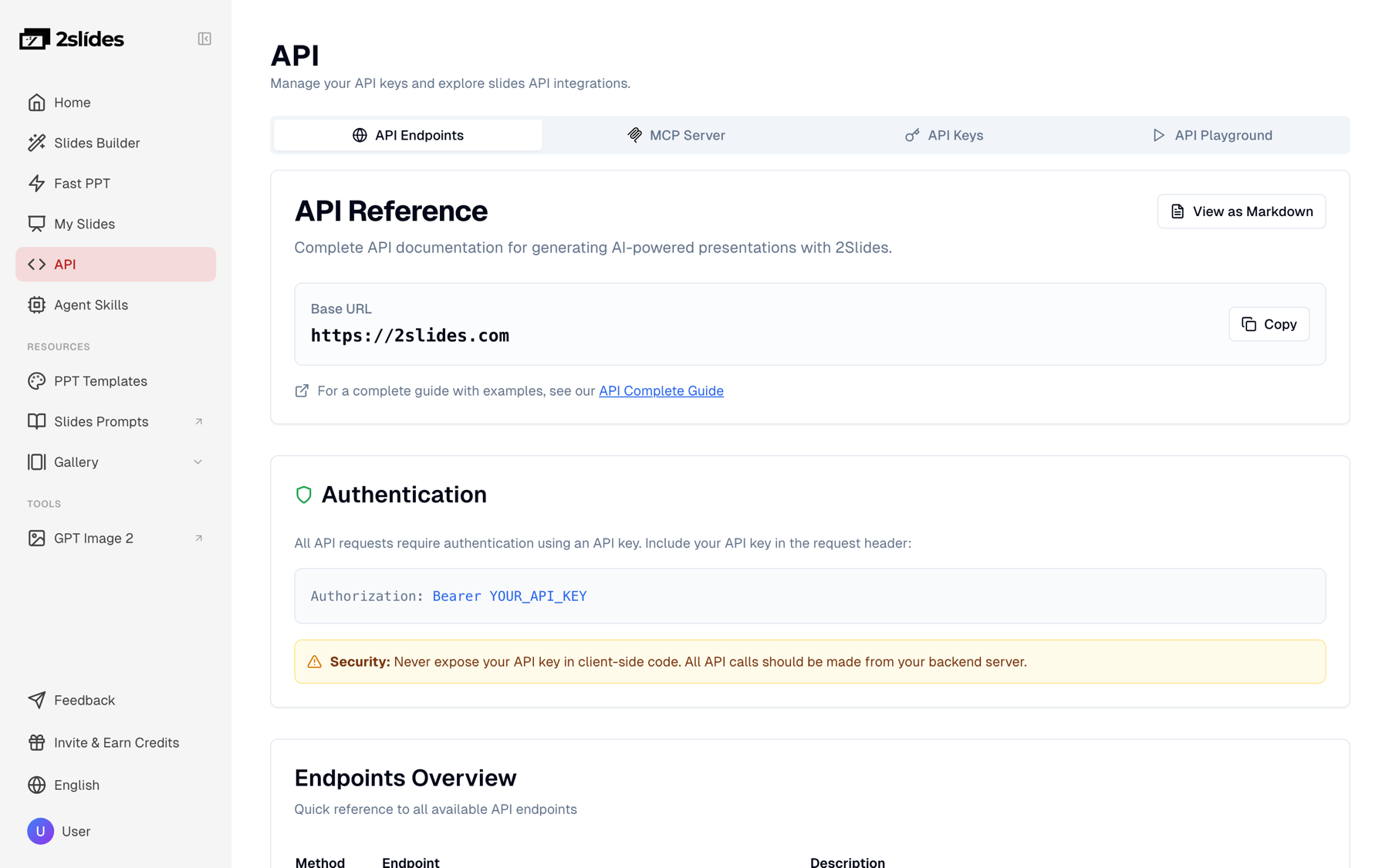
Verify the key before wiring anything else:
curl https://2slides.com/api/v1/echo \
  -H "Authorization: Bearer $SLIDES_API_KEY"
A 200 response means auth works. A 401 usually means a trailing space in the pasted key.
Search the template library once, pick a theme with a clean cover, a timeline layout, and a contacts layout, and hard-code its themeId. Searching is free and returns the themeId plus metadata from 1,500+ templates.
curl "https://2slides.com/api/v1/themes/search?query=customer%20onboarding%20timeline&limit=5" \
  -H "Authorization: Bearer $SLIDES_API_KEY"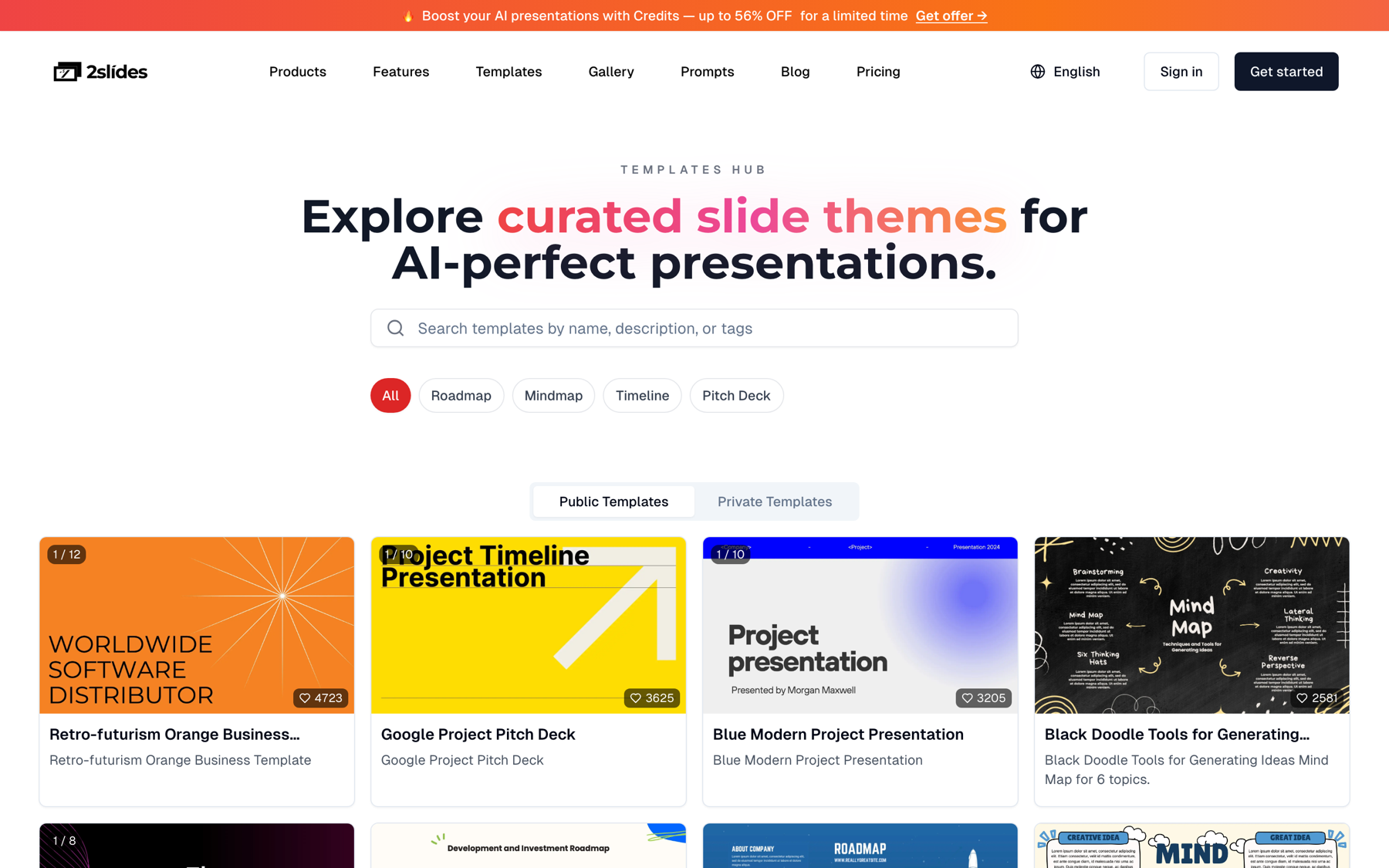
Brand consistency comes from one decision: every kickoff deck and every 90-day review uses the same themeId. The customer sees the same colors and layouts on day 1 and day 90, and the CSM never restyles anything. If your design team has an approved template, the on-brand template fill guide shows how to get it into the library so your themeId points at your own design.
For strategic accounts, swap the Fast PPT call for POST /api/v1/slides/create-like-this and pass a public URL of one approved brand slide as referenceImageUrl. The pipeline derives the whole design system from that image and returns image-designed slides as a PDF plus per-page images. The output is not editable PPTX, so use it for decks a CSM presents rather than edits; budget 10 planning credits plus 100 credits per page at 2K.
The Fast PPT path is the one a CSM would use manually in Fast PPT: paste content, choose a theme, receive a PPTX. The API automates the paste. Your job is to write the paste well, once, as a template.
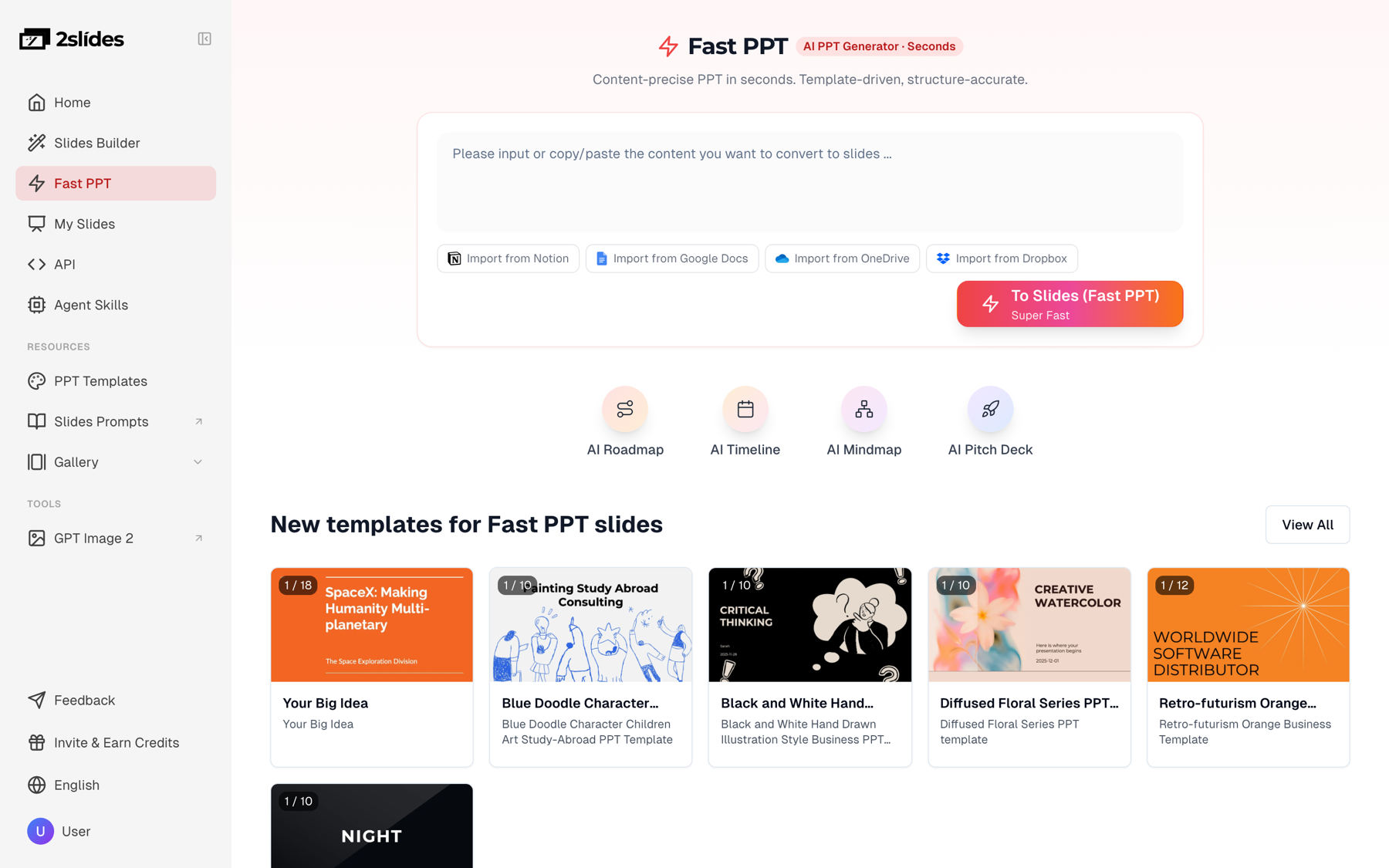
In the n8n Set node, map the CRM properties to generic names so the template works for any CRM: company, csmName, plan, seats, startDate, dealNotes (the discovery notes or "customer goals" field), and contacts (titles, sponsor and admin flagged). Then build userInput from a template like this (n8n expression syntax):
Create a customer onboarding kickoff deck for {{ $json.company }}, a new customer of Northstar Analytics.
CSM: {{ $json.csmName }}. Plan: {{ $json.plan }}, {{ $json.seats }} seats, contract start {{ $json.startDate }}.
Goals from the sales notes: {{ $json.dealNotes }}
Key contacts: {{ $json.contacts }}

Build exactly 8 slides:
1. Welcome cover with the customer name, kickoff date and CSM name
2. What you purchased: plan, seats, modules, contract dates
3. Your three goals, rewritten as measurable outcomes
4. Days 1-30: SSO, data import, admin training
5. Days 31-60: team rollout, first dashboards, adoption target
6. Days 61-90: review prep, success criteria check
7. Your team: CSM, solutions engineer, support channel, executive sponsors on both sides
8. Next steps with owners and dates before the kickoff call

Use only facts from the notes above. Where a detail is missing, insert a bracketed
placeholder such as [CSM to confirm] so it is easy to find in PowerPoint.
The bracketed-placeholder instruction matters: because the output is editable PPTX, the CSM can search for [ and fill every gap in two minutes instead of proofreading eight slides for invented details.
Here is the call with realistic values, in the default synchronous mode, which returns the finished deck in one response:
curl -X POST https://2slides.com/api/v1/slides/generate \
  -H "Authorization: Bearer $SLIDES_API_KEY" \
  -H "Content-Type: application/json" \
  -d '{
    "themeId": "YOUR_ONBOARDING_THEME_ID",
    "responseLanguage": "English",
    "mode": "sync",
    "userInput": "Create a customer onboarding kickoff deck for Acme Logistics, a new customer of Northstar Analytics. CSM: Priya Shah. Plan: Business, 120 seats, contract start 2026-10-01. Goals from the sales notes: replace weekly Excel fleet reports with live dashboards; cut month-end reporting from 5 days to 1; give 40 regional managers self-serve access. Key contacts: Dana Ortiz (VP Operations, executive sponsor), Luis Ferreira (BI lead, admin). Build exactly 8 slides: 1 welcome cover with customer name, kickoff date and CSM; 2 what you purchased; 3 the three goals as measurable outcomes; 4 days 1-30 (SSO, data import, admin training); 5 days 31-60 (regional manager rollout, first 5 dashboards); 6 days 61-90 (review prep, success criteria check); 7 your team and support channels; 8 next steps with owners and dates. Where a detail is missing, insert a bracketed placeholder for the CSM to fill in."
  }'
The response looks like { "success": true, "data": { "jobId": "...", "status": "success", "downloadUrl": "https://..." } }. Eight pages cost 80 credits. Copy the file to your own storage rather than relying on the download link long term.
This is the closed won webhook to slides path. Each CRM fires it a little differently:
deal.propertyChange on dealstage in a private app and filter in n8n for closedwon. Payloads carry IDs, not the whole deal, so fetch the record afterwards (HubSpot webhooks docs).status = won.StageName = Closed Won, with an HTTP callout to your n8n webhook URL.The n8n workflow, node by node:
onboarding_deck_url is empty, so webhook retries do not produce a second deck.userInput.https://2slides.com/api/v1/slides/generate with the Header Auth credential and JSON body { themeId, userInput, responseLanguage: "English", mode: "async" }. Async returns data.jobId in under a second, so no n8n execution holds a long connection open.https://2slides.com/api/v1/jobs/{{ $json.data.jobId }}.success continues; pending or processing loops back to Wait; failed posts a Slack alert to the ops channel.downloadUrl, kickoff date, and deal link.downloadUrl back to onboarding_deck_url so the IF node sees it next time.If your team closes 20 deals in the last hour of a quarter, add a batch loop with a 10-second Wait before each submission; generate allows 6 requests per minute per key and the jobs endpoint 10 per minute. The n8n and 2Slides walkthrough covers credential setup and polling in more detail, and the HubSpot sales deck automation post shows the same pattern for pre-sale decks.
For fairness: Gamma's API (developers.gamma.app) documents a similar n8n plus HubSpot onboarding deck recipe. Gamma API keys require a Pro plan, while 2Slides keys work on any account; 2Slides is our product, so weigh that when comparing. The n8n HTTP Request node docs apply to either recipe.
Kickoff decks are built from words; review decks are built from numbers, so the trigger changes from a webhook to a schedule. A daily Schedule Trigger in n8n (or a cron job) selects every customer whose kickoff_date was 85 days ago, pulls usage metrics from your warehouse or analytics API, and generates a 10-page review deck. Five days of lead time lets the CSM verify numbers and fix placeholders before the 90-day call.
Keep it to 8 to 12 numbers; more than that and the deck reads like a dashboard export. The QBR deck guide has a slide-by-slide outline for quarterly reviews after day 90.
The Node.js version below shows the full submit, poll, download loop and is the same code you would reuse for a quarterly QBR deck automation API job:
// review-deck.mjs  (Node 20+, no dependencies)
// Run daily from a scheduler: SLIDES_API_KEY=... ONBOARDING_THEME_ID=... node review-deck.mjs
const BASE = "https://2slides.com";
const HEADERS = {
  Authorization: `Bearer ${process.env.SLIDES_API_KEY}`,
  "Content-Type": "application/json",
};
const THEME_ID = process.env.ONBOARDING_THEME_ID; // same theme as the kickoff deck

const sleep = (ms) => new Promise((resolve) => setTimeout(resolve, ms));

function buildPrompt(c) {
  return `Create a 90-day customer review deck for ${c.company}, a customer of Northstar Analytics.
Audience: ${c.sponsor} (executive sponsor) and ${c.admin} (admin). Presenter: ${c.csmName}.
Kickoff goals: ${c.goals.join("; ")}.
Usage for days 1-85: ${c.weeklyActiveUsers} weekly active users of ${c.seats} seats (${c.adoptionPct}% adoption),
${c.dashboards} dashboards published, ${c.reportsAutomated} recurring reports automated,
${c.ticketsOpened} support tickets opened (${c.ticketsOpen} still open), active in ${c.weeksActive} of 12 weeks.
Build exactly 10 slides: 1 cover; 2 executive summary in three sentences; 3 goals vs outcomes table;
4 adoption trend; 5 feature adoption; 6 business impact using the numbers above; 7 open issues and owners;
8 roadmap items that match their goals; 9 plan for days 91-180; 10 next steps with owners and dates.
Use only the numbers given. Where a number is missing, write [CSM to confirm].`;
}

async function generateDeck(customer) {
  const submit = await fetch(`${BASE}/api/v1/slides/generate`, {
    method: "POST",
    headers: HEADERS,
    body: JSON.stringify({
      themeId: THEME_ID,
      userInput: buildPrompt(customer),
      responseLanguage: customer.language ?? "English", // a language name such as "Spanish", not a code
      mode: "async",
    }),
  });
  const submitted = await submit.json();
  if (!submitted.success) throw new Error(submitted.error);
  const jobId = submitted.data.jobId;

  // Poll every 10 s. The jobs endpoint is free and allows 10 requests per minute.
  for (;;) {
    await sleep(10_000);
    const res = await fetch(`${BASE}/api/v1/jobs/${jobId}`, { headers: HEADERS });
    const { data } = await res.json();
    if (data.status === "success") return data.downloadUrl;
    if (data.status === "failed") throw new Error(`Job ${jobId} failed`);
  }
}

async function main() {
  // Your warehouse query: customers where kickoff_date = today minus 85 days
  const customers = await loadCustomersDueForReview();
  for (const c of customers) {
    const url = await generateDeck(c);
    const file = await fetch(url);
    await saveToStorage(`${c.company}-90-day-review.pptx`, Buffer.from(await file.arrayBuffer()));
    await notifyCsm(c.csmName, c.company, url); // Slack or email, your implementation
    await sleep(10_000); // keeps generate calls under 6 per minute
  }
}

main().catch((err) => { console.error(err); process.exit(1); });
Each 10-page review deck costs 100 credits, about $0.25. The loop handles one customer at a time on purpose; with a 10-second gap you stay under the rate limit even when 30 customers hit day 85 on the same day.
Before you finalize the review prompt, look at how strong metric-driven decks handle the job. The two slides below come from a Grab investor update hosted in the 2Slides Gallery; they are reference decks for design inspiration, not API output from this workflow.
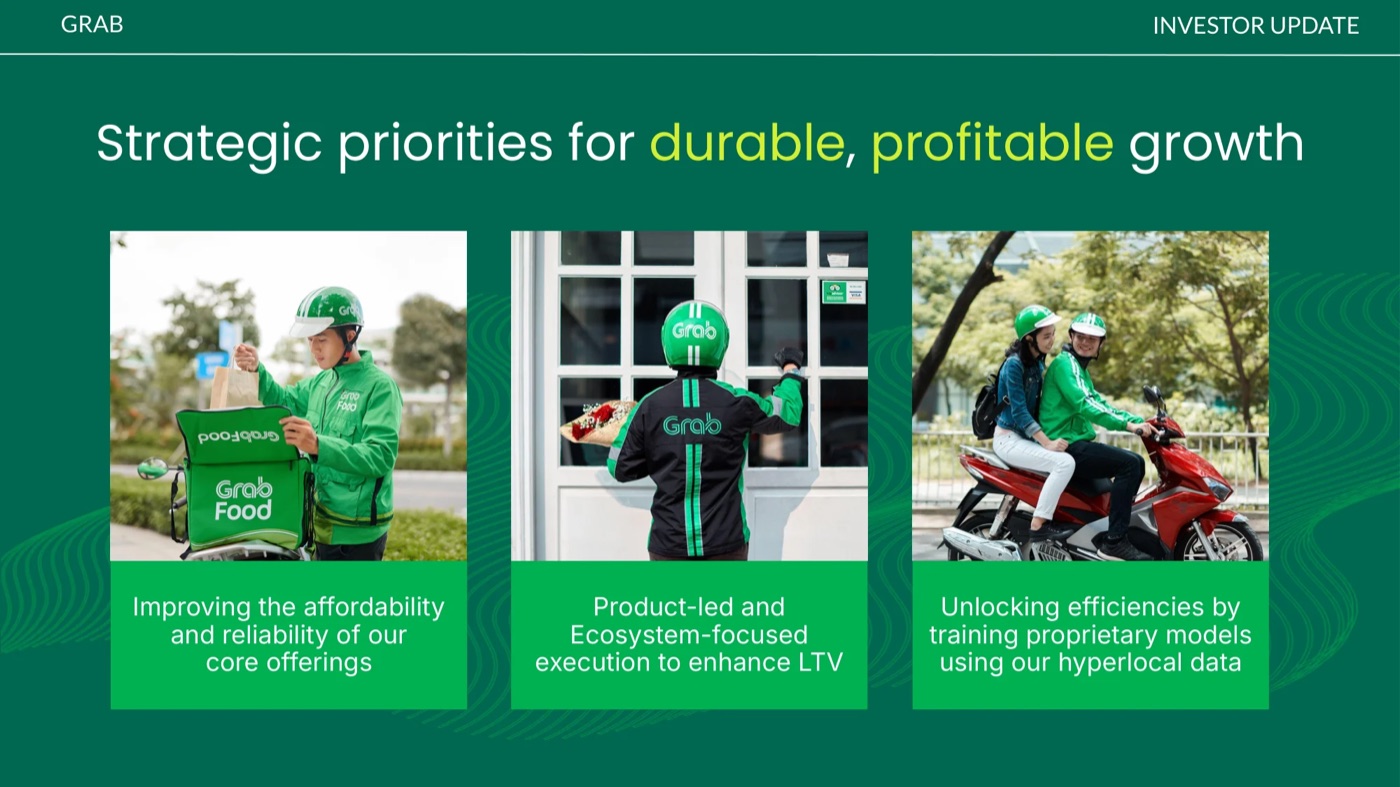
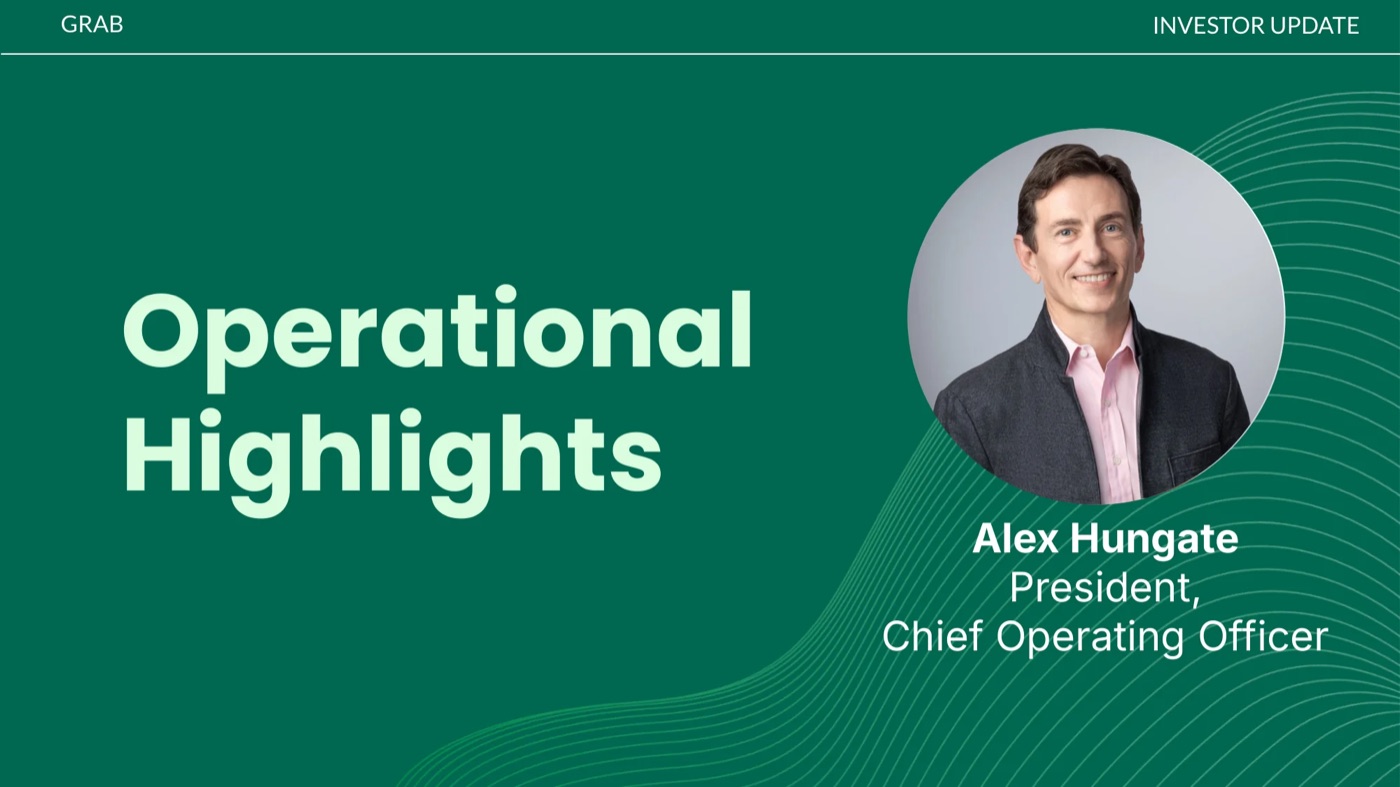
Three lessons carry over. Lead with one number per slide, not a table of twelve. Pair each metric with the customer's own kickoff goal so the review closes a loop they remember opening. Give open issues their own slide with owners. To reuse this visual language instead of a template theme, pass one of these slide URLs as referenceImageUrl to create-like-this.
Fast PPT is 10 credits per page. Credits cost $0.0025 each in the $5 pack (2,000 credits) and $0.002 each in the $80 pack (40,000). Assume an 8-page kickoff deck and a 10-page review deck per customer.
| Volume | Decks per month | Credits per month | Approximate cost |
|---|---|---|---|
| 20 new customers | 20 kickoff + 20 review = 40 | 20 x 80 + 20 x 100 = 3,600 | $9 (two $5 packs cover 4,000 credits) |
| 500 new customers | 500 kickoff + 500 review = 1,000 | 500 x 80 + 500 x 100 = 90,000 | about $180 at the $80 = 40,000 tier |
| Premium: 20 image-designed review decks (2K, 10 pages) | 20 | 20 x (10 + 1,000) = 20,200 | about $43 (the $42.50 pack is 20,000 credits) |
At the 20-customer tier the API cost is $0.45 per customer for both decks, against roughly 30 hours of CSM time per month for the manual version.
| Question | Fast PPT generate (editable PPTX) | create-pdf-slides / create-like-this (image-designed) |
|---|---|---|
| Will the CSM edit it before the call? | Yes, the default for kickoff decks | No, output is PDF plus page images |
| Cost for 10 pages | 100 credits, about $0.25 | 1,010 credits at 2K, about $2.53 |
| Brand control | One themeId, or your own uploaded template | Design system derived from one referenceImageUrl |
| Narration or MP4 for a video review? | Not supported | generate-narration (210 credits/page) + download-slides-pages-voices |
Rule of thumb: kickoff decks are always Fast PPT because they get edited. For 90-day reviews, default to Fast PPT and reserve create-like-this for top-tier accounts or a narrated video the sponsor can watch without a meeting.
generate allows 6 requests per minute per key. Serialize submissions with a 10-second Wait rather than fanning out one execution per webhook.generate-narration accepts jobs from create-pdf-slides and create-like-this only. For a narrated review video, generate the review with create-like-this from the start.responseLanguage takes "Spanish" or "Japanese", not es or ja. Map your CRM's locale field to a language name in the Set node.downloadUrl back to the deal and check for it before generating.Yes. The workflow is two HTTP calls and a poll, so Zapier, Make, a Salesforce Flow with an HTTP callout, or the 60-line Node.js script in Step 5 all work. n8n is convenient because the Wait and IF nodes make the polling loop visible, but the endpoints and the 10 credits per page cost are identical whichever orchestrator you choose.
Fast PPT decks typically finish in about 30 seconds. In the async flow the submit call returns a jobId in under a second, the first poll after 10 seconds usually shows processing, and the second or third poll returns success with a downloadUrl. The CSM usually sees the Slack message within a minute of the stage change.
Yes. The generate endpoint returns a native PPTX built from a designed template, so text, order, and layouts are editable in PowerPoint, Keynote, or Google Slides. The Step 3 prompt asks for [CSM to confirm] placeholders wherever the CRM lacks a detail, which turns editing into a quick find-and-fill rather than a rewrite.
Pass 8 to 12 numbers: weekly active users against seats, features adopted, workflows or reports automated, support tickets opened and still open, weeks active out of 12, and progress on each kickoff goal. Pull them on day 85 so the CSM has five days to verify before the call, and include the original goals so the deck closes the loop.
Yes. Set responseLanguage to a language name such as "Spanish", "Portuguese", or "Japanese", and the deck content is written in that language while the theme stays the same. 2Slides supports 20+ output languages. Map the CRM's locale field to a language name in the Set node so each customer receives a deck in their working language automatically.
themeId at your own approved design.Create stunning AI-powered presentations in seconds. Transform your ideas into professional slides with 2slides AI Agent.
Try For FreeYour AI Agent for slides. Save time, shine faster with intelligent presentation creation.




© 2026 2slides. All rights reserved.