2Slides Logo
How to Create AI Mindmap Presentations in Minutes
2Slides Team
4 min read

How to Create AI Mindmap Presentations in Minutes

Mindmaps are one of the most powerful tools for organizing ideas — but turning a mindmap into a presentation has always been a manual, time-consuming process. 2Slides' AI mindmap feature transforms any topic or brainstorming session into a professionally designed mindmap presentation.

What Are Mindmap Presentations?

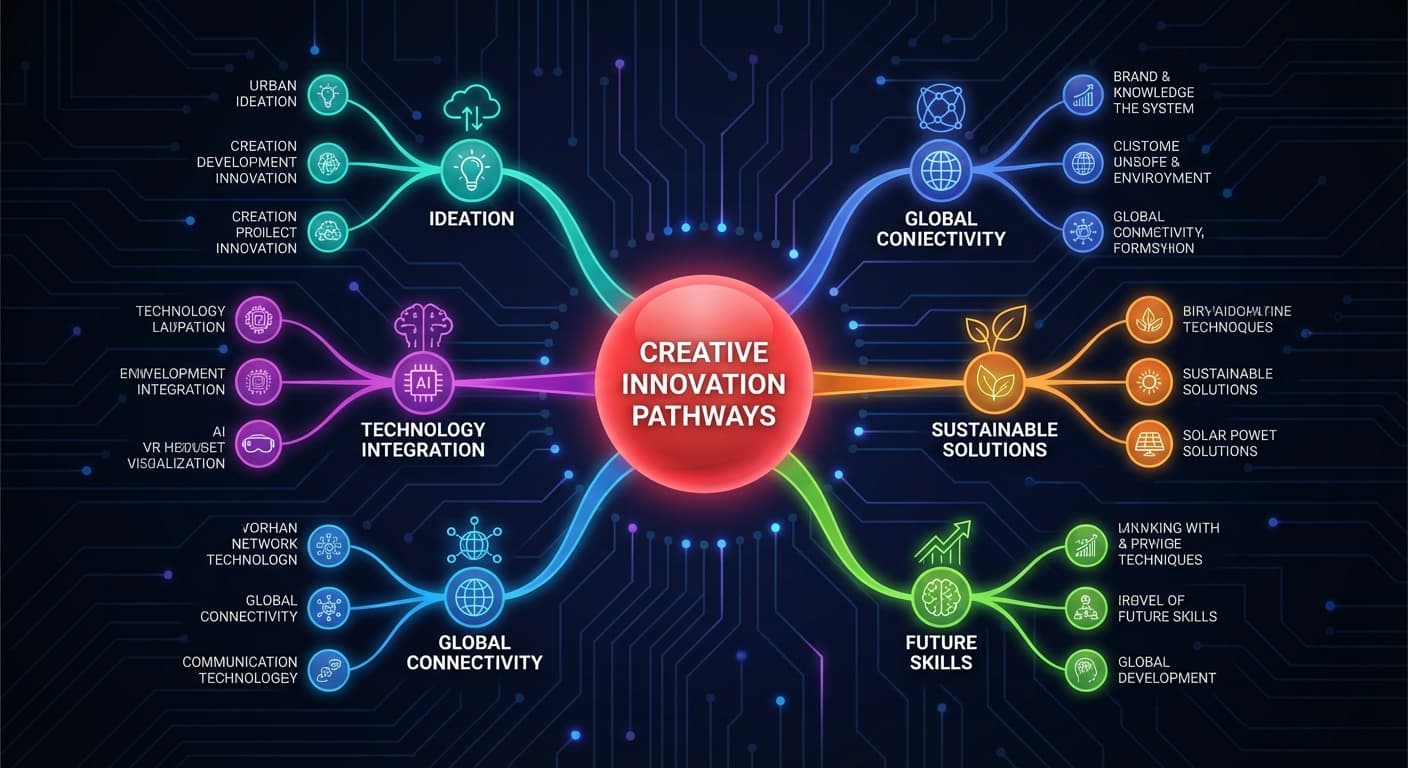
A mindmap presentation visualizes hierarchical information:

  • Central topic at the core
  • Main branches for key themes or categories
  • Sub-branches for supporting details, examples, data
  • Visual connections showing relationships between ideas

Unlike linear slide decks, mindmap presentations help audiences see the big picture and relationships between concepts simultaneously.

When to Use Mindmap Slides

Use CaseWhy Mindmap Works Better
Brainstorming sessionsShows all ideas and their connections
Project planningVisualizes workstreams, dependencies, and milestones
Strategy presentationsMaps goals to initiatives to KPIs
Educational contentHelps students see topic structure
Process documentationShows flows and decision points
Product feature overviewOrganizes features by category
Competitive analysisMaps competitor strengths/weaknesses

How to Create Mindmap Slides with 2Slides

Step 1: Enter Your Topic

In the workspace, select the Mindmap option and enter your topic:

  • Simple: "Machine learning fundamentals"
  • Structured: "Q4 marketing strategy: channels, budget, KPIs, timeline"
  • From existing content: Paste notes, outlines, or bullet points

Step 2: AI Generates the Mindmap

The AI:

  1. Analyzes your topic and identifies key branches
  2. Creates a hierarchical structure (3-4 levels deep)
  3. Generates visual mindmap slides with professional design
  4. Adds supporting content for each branch

Step 3: Customize and Export

  • Edit branches and content in the workspace
  • Choose a theme that matches your presentation style
  • Export as PowerPoint, PDF, or images
  • Add voice narration for self-explanatory presentations

Real-World Examples

Product Strategy Mindmap

Input: "2026 product strategy for a B2B SaaS platform" Generated branches:

  • Core product → feature roadmap, integrations, API expansion
  • Growth → acquisition channels, retention initiatives, pricing optimization
  • Team → engineering hiring, design capacity, customer success
  • Metrics → ARR targets, NPS goals, churn reduction

Course Curriculum Design

Input: "Introduction to Data Science — 12-week course" Generated branches:

  • Foundations → statistics, Python basics, data types
  • Core skills → data cleaning, visualization, SQL
  • Machine learning → supervised, unsupervised, evaluation
  • Applied → projects, portfolio, career prep

Competitive Analysis

Input: "AI presentation tools competitive landscape 2026" Generated branches:

  • Market leaders → Gamma, Beautiful.ai, Canva
  • Developer-focused → 2Slides (API), SlideSpeak
  • Education → SlidesAI, Google Slides + Gemini
  • Enterprise → Microsoft Copilot, Tome (pivoted)

Combine with Other Features

Mindmap presentations are even more powerful when combined:

  • + Voice narration → self-explaining mindmap walkthroughs
  • + Create Like This → mindmaps in your brand's design style
  • + Video export → shareable mindmap videos for async communication
  • + API automation → generate mindmaps from data programmatically

Tips for Best Results

  1. Start with clear categories — the AI performs best when you hint at the structure
  2. Use Standard content detail — Concise mode may oversimplify the branches
  3. Choose landscape (16:9) format — mindmaps need horizontal space
  4. Pick a clean theme — let the mindmap visuals be the focus
  5. Review branch hierarchy — ensure the AI captured the right structure

Frequently Asked Questions

Can I add or remove branches after generation?

Yes. Edit individual slides in the workspace to add, remove, or reorganize branches.

How many levels deep does the mindmap go?

The AI typically generates 3-4 levels of hierarchy. You can request more depth with a prompt like "Create a detailed mindmap with 5 levels of granularity."

Can I convert an existing document into a mindmap?

Yes — use Create Slides from File with a prompt like "Transform this document into a mindmap presentation focusing on key themes and relationships."


Visualize your ideas — create mindmap presentations with 2Slides.

About 2Slides

Create stunning AI-powered presentations in seconds. Transform your ideas into professional slides with 2slides AI Agent.

Try For Free



