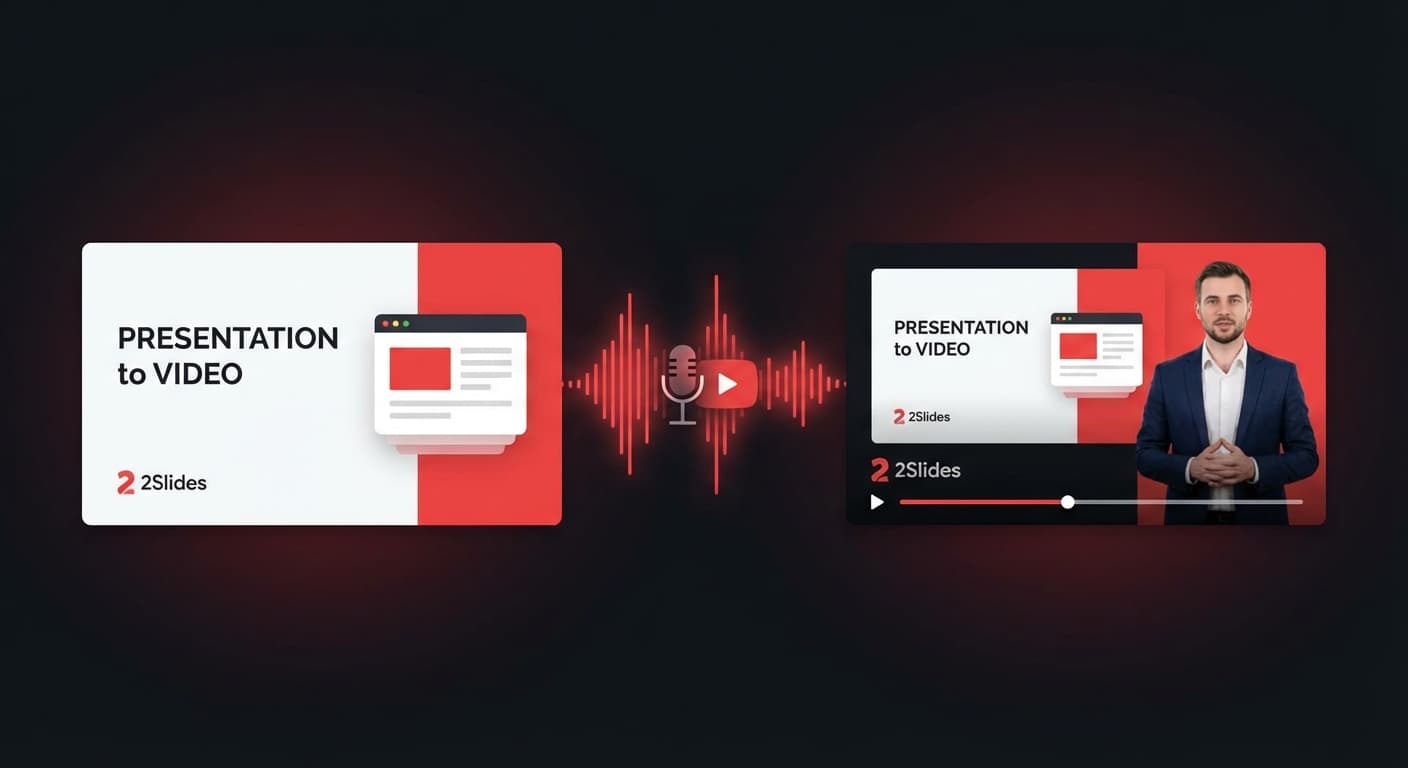

How to Create AI Narrated Presentation Videos with 2Slides
What if your slides could speak for themselves — literally? With 2Slides, you can transform any AI-generated presentation into a professional narrated video, complete with natural-sounding AI voiceovers, in minutes.
This guide walks you through the complete workflow: from generating slides to adding voice narration and exporting a polished MP4 video.
What Is AI Narrated Presentation Video?
An AI narrated presentation video combines three elements:
- AI-generated slide visuals — professional designs created from your text input
- AI voice narration — natural-sounding speech generated from your slide content
- Video output — a self-playing MP4 video that syncs slides with voice audio
The result is a video presentation that looks and sounds like it was produced by a professional studio — but takes minutes instead of hours.
Why Create Narrated Presentation Videos?
Narrated videos solve real problems across industries:
- Async communication: Share context without scheduling meetings
- Training & onboarding: Create self-paced learning materials
- Data storytelling: Let your data narrative unfold with voice guidance
- Social media content: Produce vertical (9:16) videos for Instagram, TikTok, and LinkedIn
- Sales enablement: Send personalized pitch videos that prospects can watch anytime
- Accessibility: Voice narration makes content accessible to visual learners and people with reading difficulties
Step-by-Step: Create a Narrated Video with 2Slides
Step 1: Generate Your Slides
Start by creating a presentation in the 2Slides workspace:
- Enter your topic or paste your content
- Choose a design template (15+ professional styles including McKinsey, Apple, Saul Bass)
- Or use Create-Like-This to clone any existing slide design
- AI generates all slide pages with professional visuals
Step 2: Configure Voice Narration
Once your slides are ready, configure the voice settings:
Choose a narration mode:
- Single Speaker: One consistent narrator throughout the presentation
- Multi-Speaker: Two speakers in a natural conversation format — ideal for podcasts, interviews, and engaging storytelling
Select from 30 AI voices:
2Slides offers 30 natural-sounding voices powered by Google's latest TTS models. Each voice has a distinct personality:
| Voice | Tone | Best For |
|---|---|---|
| Puck | Upbeat, energetic | Marketing, product demos |
| Kore | Warm, professional | Corporate training |
| Charon | Firm, authoritative | Financial reports |
| Fenrir | Excitable, dynamic | Education, storytelling |
| Aoede | Breezy, conversational | Podcast-style content |
| Zephyr | Bright, clear | Sales pitches |
...and 24 more voices to match any tone.
Choose content density:
- Concise: Brief, bullet-point narration (~30 seconds per slide)
- Standard: Detailed, engaging explanations (~60-90 seconds per slide)
Step 3: Generate Voice Text
Click Generate Voice Text to create the narration script. The AI:
- Analyzes each slide's content and visual elements
- Writes natural narration that flows between slides
- Adds transitions, emphasis, and storytelling elements
- In multi-speaker mode, creates natural dialogue between two voices
Cost: 10 credits per slide page
You can review and edit the generated text before proceeding.
Step 4: Generate Voice Audio
Click Generate Voice Audio to synthesize the speech:
- Each slide gets a high-quality WAV audio file
- Preview each audio clip with the built-in player
- Re-generate individual slides if needed
Cost: 200 credits per slide page
Step 5: Export Video
With all slides narrated, click Generate Video from the Export menu:
-
Choose aspect ratio:
- 16:9 (1920x1080) — standard presentations, YouTube, webinars
- 4:5 (1080x1350) — Instagram posts, LinkedIn feed
-
Video generation runs client-side using FFmpeg.wasm — your data never leaves your browser
-
Download the finished H.264 MP4 video
Cost: 20 credits per slide page
Total Cost Example
For a 10-slide narrated video:
| Step | Per Slide | Total |
|---|---|---|
| Slide generation | ~100 credits | 1,000 |
| Voice text | 10 credits | 100 |
| Voice audio | 200 credits | 2,000 |
| Video export | 20 credits | 200 |
| Total | 3,300 credits |
With 2Slides Pro at $12.50/month (10,000 credits), you can produce 3 full narrated videos per month — or more with shorter presentations.
API Integration: Automate Narrated Videos
Developers can automate the entire workflow via the 2Slides API:
# Step 1: Generate slides with Nano Banana (required for narration) POST /api/v1/slides/create-pdf-slides { "userInput": "Q1 2026 Financial Results Overview", "designStyle": { "global": { "referenceImageUrl": "..." } } } # Poll until completed GET /api/v1/jobs/{jobId} # Step 2: Generate narration for all pages POST /api/v1/slides/generate-narration { "jobId": "your-job-id", "mode": "multi", "speaker1Name": "Analyst", "speaker2Name": "Host", "speaker1Voice": "Charon", "speaker2Voice": "Aoede", "contentMode": "standard" } # Step 3: Download all assets POST /api/v1/slides/download-slides-pages-voices { "jobId": "your-job-id" }
Note: Voice narration requires Nano Banana jobs (
orcreate-like-this). Standard Fast PPT jobs do not support narration.create-pdf-slides
The API returns a ZIP file containing all slide images, voice audio files, and a full transcript — ready for video assembly in your pipeline.
Multi-Language Narration
2Slides automatically detects the language of your slide content and generates narration in the matching language:
- English — default
- Japanese — detected from hiragana, katakana, kanji
- Chinese — detected from hanzi characters
- Korean — detected from hangul
The same 30 voices work across all supported languages with natural pronunciation.
Frequently Asked Questions
How long does it take to generate a narrated video?
For a 10-slide presentation: voice text generation takes ~30 seconds, voice audio ~2 minutes, and video export ~2 minutes. Total: under 5 minutes.
Can I edit the narration script before generating audio?
Yes. After generating voice text, you can review and edit every slide's narration in the workspace before generating audio.
What video formats are supported?
2Slides exports H.264 MP4 video — universally compatible with YouTube, social media, LMS platforms, and all major video players.
Is my data secure during video generation?
Yes. Video encoding happens entirely in your browser using FFmpeg.wasm. Your slide images and audio files are not sent to any third-party server for video processing.
Can I use the API to generate videos?
The API supports generating slides and voice narration. Video assembly can be done client-side or with your own FFmpeg pipeline using the downloaded assets.
Get Started
- Sign up for 2Slides — free trial credits included
- Create your first presentation
- Add voice narration and export video
- Share your narrated video anywhere
Transform your presentations into professional narrated videos — try 2Slides now.
About 2Slides
Create stunning AI-powered presentations in seconds. Transform your ideas into professional slides with 2slides AI Agent.
Try For Free



