2Slides Team
6 min read


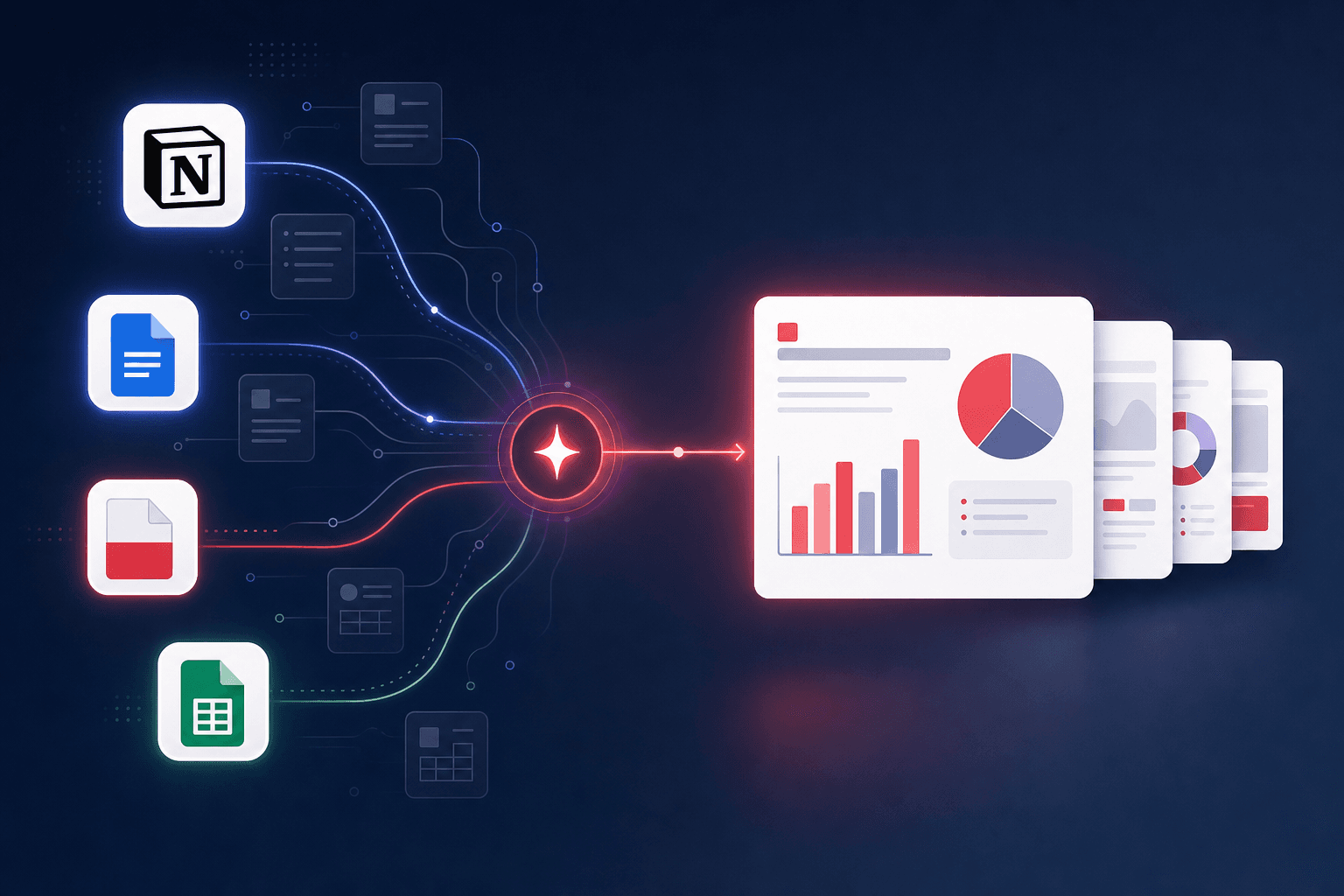
Quick Answer (≤60 words): Your team's content already exists - in Notion, Google Docs, PDFs, and spreadsheets. The 2026 move isn't rewriting it as slides; it's connecting the source to an AI slide tool that reads it and designs the deck. With 2Slides you connect Notion or Google Docs read-only, or upload a file, and generate a presentation you can export to PowerPoint, PDF, or narrated video.
Nobody's blocker is a lack of content. It's the retyping - copying a Notion page, a Google Doc, or a PDF into a slide tool by hand, losing the structure, and rebuilding it every time. This guide is the map: which source connects how, what stays private, and the workflow that stops the retyping for good.
Think of this as the hub; each section links to a deep dive.
.pptx, a PDF, or a narrated MP4 - in 21 languages.| Your content lives in... | Use this | Deep dive |
|---|---|---|
| Notion | Notion integration (read-only OAuth, page picker) | Generate presentations from Notion |
| Google Docs | Google Docs integration (read-only, paste a link) | Google Docs → Slides |
| A PDF or Word report | Create from File | PDF to Slides |
| A spreadsheet / data | Create from File | Spreadsheet to Slides |
| An existing deck to match | Create like this | File to narrated video |
All of these feed the same two output flows - designed slides (with narration/video) or a template-driven editable .pptx.
Copy-pasting flattens your content: headings, lists, and tables become one block of text, and the AI has to reverse-engineer your outline - which is where decks go wrong. A read-only integration reads the document as a document, so the slide structure is built from the structure you already wrote. It's faster, more faithful, and it doesn't drift out of date the way a pasted snapshot does. The Notion and Google Docs integrations are built exactly for this.
The first question any team asks is about access. Across the integrations:
See the integrations hub for the full security model.
The payoff of starting from your real content is what you can do with it:
.pptx from the template-driven Fast PPT path.A Notion project page becomes a narrated kickoff video; a Google Doc brief becomes a client-ready PDF; a 40-page PDF becomes a 10-slide readout. Same principle, different source.
For teams doing this repeatedly, the pattern is: keep authoring where you already do (Notion, Google Docs), and make deck generation a one-click step off that source. When volume grows, the same generation engine is available via API - so a new Notion database row or a new report can trigger a deck automatically. See Automate Notion to Slides for the three levels of hands-off.
Connect the source to an AI slide tool rather than retyping. With 2Slides, connect Notion or Google Docs read-only (or upload a PDF/Word file), pick the content, and generate a designed deck you can export to PowerPoint, PDF, or video.
No. Notion and Google Docs connect with read-only OAuth scoped to what you grant - Google Docs is limited to the single document link you paste, and Notion to the pages you authorize. Sharing settings are never changed, and you can disconnect anytime.
Yes. The Workspace flow adds per-page AI narration and exports an H.264 MP4, so a report or Notion page can become a watchable briefing.
2Slides generates presentations in 21 languages, so one source document can produce decks for multiple markets.
Upload it directly to Create from File. It runs a full analysis pass over the document before writing slides - see PDF to Slides and Spreadsheet to Slides.
Your team's next deck is already written - it's just in the wrong format. Instead of retyping it, connect the source: Notion, Google Docs, or a file. Read-only, private, structure preserved, and exportable as PowerPoint, PDF, or narrated video in 21 languages. Pick your source above and follow the deep dive.
Browse the connections: All Integrations. Start with your source: Notion · Google Docs · Create from File
Last reviewed: 2026-07-08 by the 2Slides team.
Create stunning AI-powered presentations in seconds. Transform your ideas into professional slides with 2slides AI Agent.
Try For FreeYour AI Agent for slides. Save time, shine faster with intelligent presentation creation.




© 2026 2slides. All rights reserved.