2Slides Team
10 min read

Teachers reportedly spend an average of 7 hours a week preparing classroom materials. The largest single chunk of that time is not lesson planning — it is converting source material into something a student can study. Textbooks become handouts. Handouts become slides. Slides become flashcards. Flashcards become quizzes.
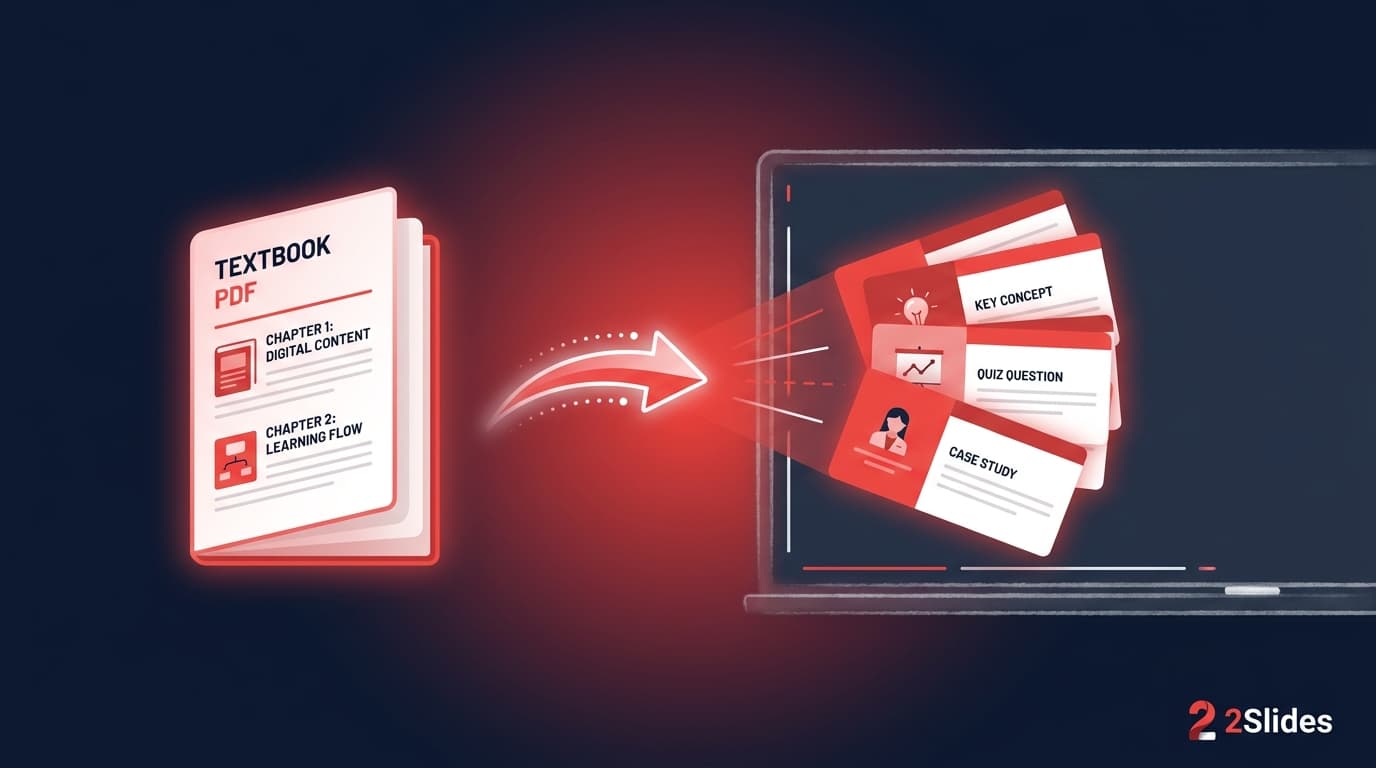
This guide shows how educators are collapsing that pipeline by treating each unit as a knowledge card: a self-contained, visual, study-ready slide that can be projected, printed, narrated, or posted as a short video.
A knowledge card is a slide that captures one studyable idea — a concept, a definition, a process step, a vocabulary item, a worked example — in a consistent visual format. A deck of 20–60 knowledge cards is the modern replacement for "Chapter 4 study guide."
Compared to traditional flashcards, knowledge cards are:
A teacher who can ship a 30-card deck on Monday morning before first period can ship a 30-question quiz, a 6-minute review video, and a printable cheat sheet from the same generation.
Three signals from teacher communities and instructional-design literature:
2Slides has two product flows, and only one supports narration and video:
| Flow | What it does | Voice + MP4 | Best for educators |
|---|---|---|---|
Fast PPT (/fast-ppt + /templates) | Template-driven PPTX in seconds | ❌ | Quick silent slide deck for the smartboard or a substitute teacher; no voice or video needed |
| Workspace flow (Create Slides from File / Create Slides Like This / Nano Banana presentation slides) | Image-generated knowledge cards editable per page | ✅ per-page voice; ✅ MP4 16:9 / 9:16 | Knowledge cards with images, narration for flipped/asynchronous classes, LMS-ready MP4 |
For knowledge cards built from a textbook PDF and ending in an LMS-ready narrated video, use the Workspace flow — start from Create Slides from File. For a printable PPTX you'll just project, Fast PPT is faster.
The Workspace flow accepts the formats teachers already have:
Drop the file into Create Slides from File. The system parses headings, key terms, and figures, then generates per-page images and text in Workspace. If you don't have a source file but have a list of terms or a topic, Create Slides Like This and Nano Banana presentation slides are the prompt-first entry points.
Knowledge cards in the Workspace flow are generated per page from your prompt — so the "template" is the prompt itself rather than a separate library. Useful patterns:
Pick one pattern per deck so visual consistency is automatic. After generation you can regenerate any single card's image or edit its text without rebuilding the whole deck.
The single biggest predictor of usable output is a tight prompt. A teacher prompt that works:
Generate 24 knowledge cards from the attached chapter on cellular respiration for a US 10th-grade biology class. One card per concept. Each card: term, plain-English definition, real-world analogy, an exam-style multiple-choice question with answer hidden on a follow-up slide. Use diagrams, not photographs.
The generator produces 24 cards plus 24 hidden-answer slides — exactly the structure of a study deck.
In Workspace, every card has its own voice settings. For self-paced and flipped use, configure voice per page and let Workspace generate the voice text and audio. Two patterns work for educators:
You can edit the auto-generated voice text per card before audio synthesis — useful for adding correct pronunciations of proper nouns, technical terms, or non-English words that the model might mispronounce by default.
| Output | Channel |
|---|---|
| PPTX | Smartboard projection, hand-off to substitute teacher |
| Printed study guide, take-home packet, accessibility (screen reader) | |
| MP4 16:9 | LMS embed (Canvas, Moodle, Blackboard, Google Classroom), YouTube unlisted |
| MP4 9:16 | Optional: short-form recap clip per concept for student social channels |
The same source generation produces all four. There is no second pass.
A biology teacher uploads chapter 7 of an open educational resources (OER) textbook on cellular respiration (~30 pages). She prompts:
30 knowledge cards. One card per key term. Each card: term in bold, plain-English definition, classroom analogy, question on the next slide. Use simple diagrams. Output a follow-up "answer" card after each question. End with a 5-card summary.
She gets a 65-slide deck back. She:
Total time: 22 minutes. Without AI, the same outputs would have been a half-day of work.
Districts with ESL learners or dual-language programs benefit most. The same 30-card deck regenerated in Spanish, Vietnamese, or Mandarin keeps the same images and structure but localizes terminology and example sentences. ESL students are not handed a separate, simpler deck — they study the same concepts at the same depth in their stronger language. This pattern is detailed in the best AI presentation tools for teachers comparison.
Anki, Quizlet, and Knowt remain excellent for scheduling review with spaced repetition. They are not great at first-pass content delivery in a classroom or LMS. Knowledge-card decks fill that gap.
| Job to be done | Best tool |
|---|---|
| First exposure in a classroom (projected or printed) | 2Slides knowledge cards |
| First exposure asynchronously with voice | 2Slides narrated MP4 |
| Daily spaced-repetition review | Anki / Quizlet / Knowt |
| Final-exam visual review night | 2Slides PDF deck |
| Short-form recap on social | 2Slides 9:16 MP4 |
The cleanest setup is to use both: 2Slides for content delivery, Anki/Quizlet for the SRS layer.
Schools and universities care about three things: data residency, FERPA-compatible workflows, and content provenance. Practical points:
Yes. Create Slides from File accepts PDFs and parses chapter structure. For long PDFs, upload one chapter at a time for tighter control over scope.
The generator places a "Sources" placeholder at the end of every deck. Best practice is to fill in the citation manually — author, title, edition, chapter — to keep provenance defensible.
Export as PDF or MP4 instead of PPTX. PDF and MP4 are not editable by default. PPTX is editable, which is useful for handing off to a substitute teacher but not for student distribution.
Yes for most secondary-school-level formulas (rendered as images). For dense graduate-level math notation, generating LaTeX in a callout is more reliable than embedded equation editors. Always proof for typographical correctness.
The voices are natural enough for most async coursework. For accessibility-critical or credit-bearing courses with strict standards, run a sample by your accessibility office first. The educational video lectures with AI voice guide walks through the production pipeline.
2Slides uses a credit model rather than per-seat licensing. Knowledge cards run on the Nano Banana flow, so credits are per slide image: roughly 3,010 credits per silent 30-card deck at 2K (10 planning + 30 × 100 generation), or ~9,310 with narration (add 30 × 210 narration). A teacher generating one silent deck per week for a 36-week school year is ~108,000 credits; the same teacher narrating once a month is ~155,000. Both fit common education tier budgets. See the pricing page.
Yes. PPTX and MP4 are universally accepted. PDFs are accepted everywhere. For SCORM or xAPI packages, export the MP4 and wrap it with your authoring tool.
Knowledge-card decks don't replace teaching. They replace the prep work that was eating teachers' evenings.
Create stunning AI-powered presentations in seconds. Transform your ideas into professional slides with 2slides AI Agent.
Try For FreeYour AI Agent for slides. Save time, shine faster with intelligent presentation creation.




© 2026 2slides. All rights reserved.