2Slides Team
5 min read

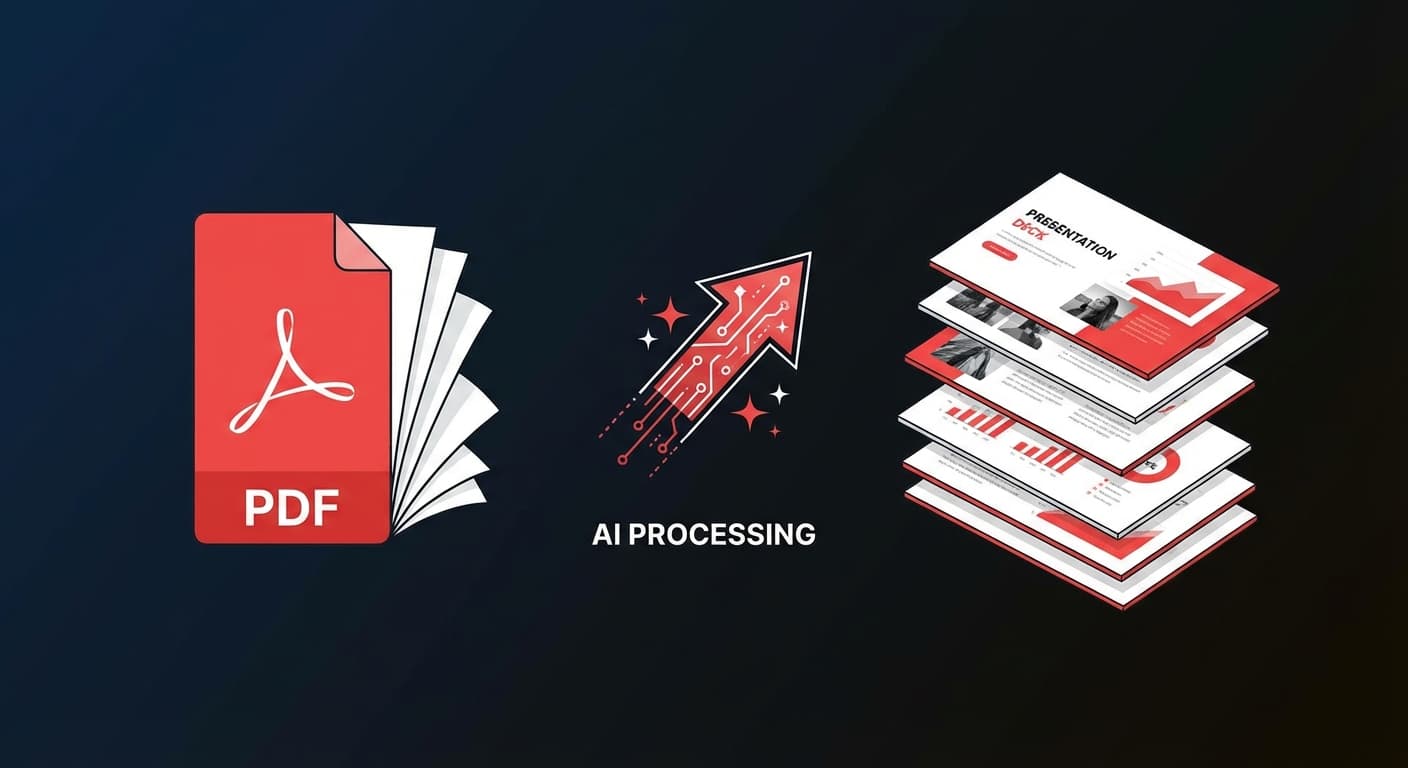
Die Umwandlung von PDF-Dokumenten in Präsentationen ist eine der häufigsten Produktivitätsaufgaben im Geschäftsleben. Ob Forschungsarbeit, Quartalsbericht oder Projektvorschlag – der Inhalt ist bereits vorhanden, er muss nur noch zu Folien werden.
Dieser Leitfaden zeigt Ihnen, wie Sie jedes PDF mit KI in professionelle Folien verwandeln und so Stunden manuellen Kopierens, Einfügens und Formatierens sparen.
Herkömmliche PDF-zu-PowerPoint-Konvertierungstools extrahieren lediglich Text und Bilder – und hinterlassen Ihnen unschöne, unformatierte Folien, die eine umfangreiche manuelle Nachbearbeitung erfordern. KI-gestützte Konvertierung ist grundlegend anders:
| Herkömmliche Konvertierung | KI-gestützte Konvertierung |
|---|---|
| Extrahiert rohe Textblöcke | Versteht Inhaltsstruktur und Bedeutung |
| Zerstört Formatierung | Erstellt neue, professionelle Layouts |
| Ignoriert visuelle Hierarchie | Generiert passende Visualisierungen |
| Benötigt 1-2 Stunden Nachbearbeitung | In wenigen Minuten präsentationsfertig |
| Keine Inhaltszusammenfassung | Destilliert Kernpunkte automatisch |
2Slides unterstützt die Konvertierung mehrerer Dokumentformate in Folien:
Dies macht 2Slides zum vielseitigsten verfügbaren Dokument-zu-Folien-Konverter.
Navigieren Sie zum 2Slides-Arbeitsbereich und wählen Sie Folien aus Datei erstellen:
Sie können die KI mit einem benutzerdefinierten Prompt anleiten:
Wenn Sie diesen Schritt überspringen, identifiziert die KI automatisch die wichtigsten Inhalte und strukturiert sie logisch.
Wählen Sie aus über 15 professionellen Vorlagen:
Oder nutzen Sie Create Like This, um ein Referenzbild hochzuladen und die KI den genauen Designstil anpassen zu lassen.
| Einstellung | Optionen | Empfehlung |
|---|---|---|
| Resolution | 512px, 1K, 2K, 4K | 2K für die meisten Präsentationen |
| Aspect Ratio | 16:9, 4:3, 1:1, custom | 16:9 für Standardpräsentationen |
| Content Detail | Concise, Standard | Concise für Führungskräfte, Standard für Schulungen |
| Language | 22+ languages | Passend für Ihr Publikum |
Klicken Sie auf Generieren und warten Sie auf Ihre Folien. Typische Verarbeitungszeit:
Als PowerPoint (.pptx) zum Bearbeiten herunterladen oder als PDF oder Bilder exportieren.
Eingabe: 25-seitige wissenschaftliche Arbeit (PDF) Prompt: "Erstellen Sie eine 15-minütige Konferenzpräsentation, die Methodik und Hauptergebnisse hervorhebt" Ergebnis: 12 Folien mit klarem Methodikfluss, Ergebnisvisualisierung und Schlussfolgerungen
Eingabe: 40-seitiger vierteljährlicher Geschäftsbericht (PDF) Prompt: "Zusammenfassung für den Vorstand, Fokus auf Umsatz, Wachstumsmetriken und strategische Initiativen" Ergebnis: 10 Folien mit finanziellen Highlights, Diagrammen und strategischen Empfehlungen
Eingabe: API-Dokumentation (Markdown) Prompt: "Erstellen Sie Onboarding-Schulungsfolien für neue Entwickler" Ergebnis: 15 Folien mit Codebeispielen, Architekturdiagrammen und Schritt-für-Schritt-Anleitungen
Eingabe: Verkaufsdaten (XLSX) Prompt: "Monatliche Verkaufsübersicht mit regionalen Aufschlüsselungen und Trends" Ergebnis: 8 Folien mit automatisch generierten Diagrammen, Vergleichen und wichtigen Erkenntnissen
Für wiederkehrende Dokument-zu-Folien-Workflows verwenden Sie die 2Slides API:
# PDF hochladen und in Folien umwandeln
POST https://2slides.com/api/v1/slides/create-pdf-slides
Content-Type: application/json
Authorization: Bearer sk-2slides-xxx

{
  "fileUrl": "https://example.com/quarterly-report.pdf",
  "userInput": "Executive summary, 10 slides max",
  "themeId": "your-theme-id",
  "mode": "async"
}
Dies ermöglicht automatisierte Pipelines: Jedes Mal, wenn ein neuer Bericht in Ihr System gelangt, werden automatisch Folien generiert.
Die KI funktioniert am besten mit textbasierten PDFs. Für gescannte Dokumente führen Sie zuerst eine OCR (Texterkennung) durch (Adobe Acrobat, Online-Tools), um den Text zu extrahieren, und wandeln Sie ihn dann um.
2Slides verarbeitet Dokumente bis zu 100 MB. Für sehr lange Dokumente (über 100 Seiten) empfehlen wir, einen benutzerdefinierten Prompt anzugeben, um die KI auf bestimmte Abschnitte zu fokussieren.
Über die API, ja – Sie können mehrere Dokumente im Stapel verarbeiten. In der Weboberfläche laden Sie jeweils eine Datei hoch.
Die KI identifiziert Schlüsselthemen, Datenpunkte, Schlussfolgerungen und umsetzbare Punkte. Sie priorisiert die Inhaltsdichte und entfernt Fülltext, Anhänge und Referenzen, es sei denn, dies wird explizit angefordert.
Verwandeln Sie jedes Dokument in professionelle Folien – probieren Sie 2Slides aus und wandeln Sie Ihr erstes PDF in wenigen Minuten um.
Create stunning AI-powered presentations in seconds. Transform your ideas into professional slides with 2slides AI Agent.
Try For FreeYour AI Agent for slides. Save time, shine faster with intelligent presentation creation.




© 2026 2slides. All rights reserved.