2Slides Team
6 min read

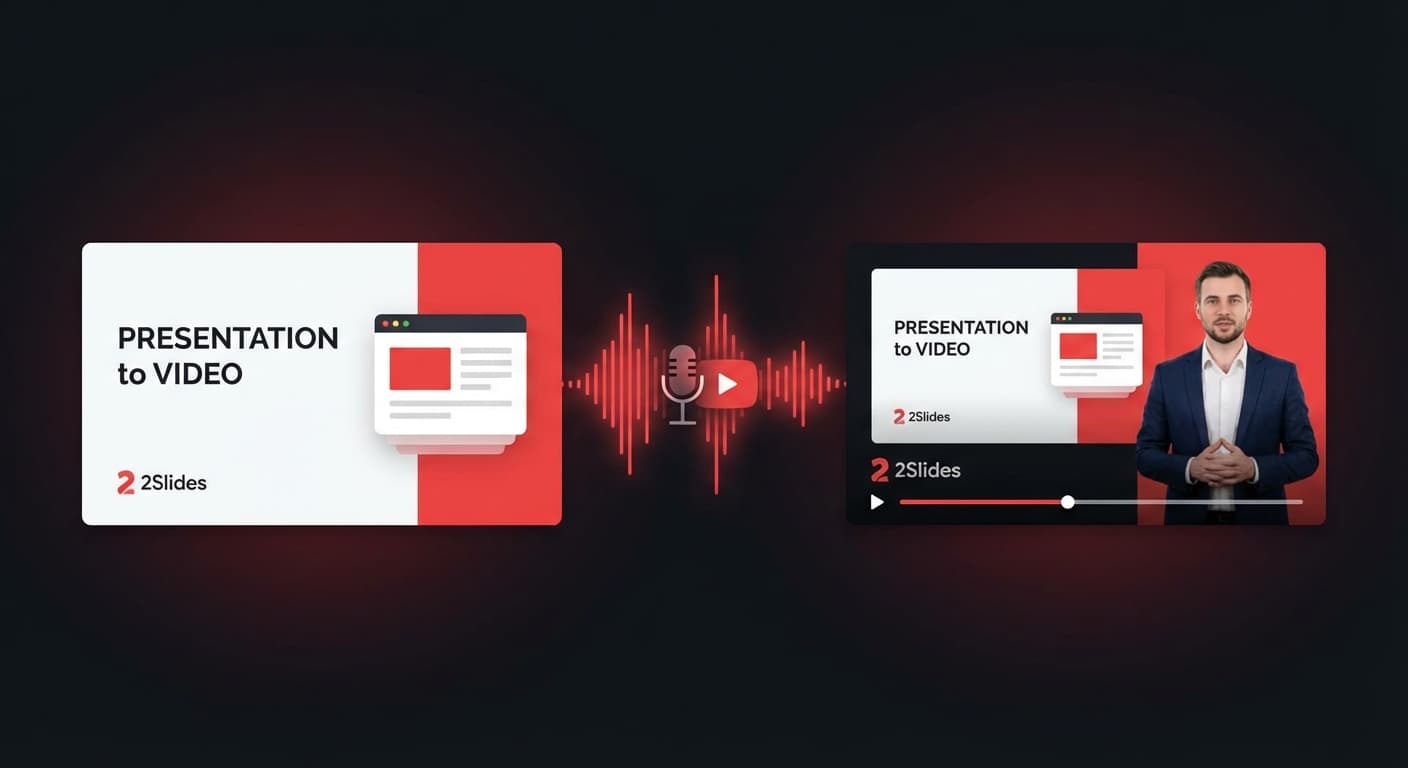
Was wäre, wenn Ihre Folien – buchstäblich – für sich selbst sprechen könnten? Mit 2Slides verwandeln Sie jede KI-generierte Präsentation in wenigen Minuten in ein professionelles, vertontes Video, komplett mit natürlich klingenden KI-Voiceovers.
Dieser Leitfaden führt Sie durch den gesamten Workflow: von der Generierung der Folien über das Hinzufügen von Sprachnarration bis zum Export eines fertigen MP4-Videos.
Ein KI-vertontes Präsentationsvideo kombiniert drei Elemente:
Das Ergebnis ist eine Videopräsentation, die aussieht und klingt, als wäre sie von einem professionellen Studio produziert worden – benötigt aber Minuten statt Stunden.
Vertonte Videos lösen echte Probleme in verschiedenen Branchen:
Beginnen Sie, indem Sie eine Präsentation im 2Slides-Arbeitsbereich erstellen:
Sobald Ihre Folien fertig sind, konfigurieren Sie die Spracheinstellungen:
Einen Narrationsmodus wählen:
Aus 30 KI-Stimmen wählen:
2Slides bietet 30 natürlich klingende Stimmen, die von Googles neuesten TTS-Modellen angetrieben werden. Jede Stimme hat eine eigene Persönlichkeit:
| Voice | Tone | Best For |
|---|---|---|
| Puck | Upbeat, energetic | Marketing, product demos |
| Kore | Warm, professional | Corporate training |
| Charon | Firm, authoritative | Financial reports |
| Fenrir | Excitable, dynamic | Education, storytelling |
| Aoede | Breezy, conversational | Podcast-style content |
| Zephyr | Bright, clear | Sales pitches |
...und 24 weitere Stimmen, die zu jedem Ton passen.
Inhaltsdichte wählen:
Klicken Sie auf Generate Voice Text, um das Narrationsskript zu erstellen. Die KI:
Kosten: 10 Credits pro Folienseite
Sie können den generierten Text überprüfen und bearbeiten, bevor Sie fortfahren.
Klicken Sie auf Generate Voice Audio, um die Sprache zu synthetisieren:
Kosten: 200 Credits pro Folienseite
Nachdem alle Folien vertont wurden, klicken Sie im Export-Menü auf Generate Video:
Seitenverhältnis wählen:
Die Videogenerierung erfolgt clientseitig mit FFmpeg.wasm – Ihre Daten verlassen niemals Ihren Browser
Das fertige H.264 MP4-Video herunterladen
Kosten: 20 Credits pro Folienseite
Für ein vertontes Video mit 10 Folien:
| Step | Per Slide | Total |
|---|---|---|
| Slide generation | ~100 credits | 1,000 |
| Voice text | 10 credits | 100 |
| Voice audio | 200 credits | 2,000 |
| Video export | 20 credits | 200 |
| Total | 3,300 credits |
Mit 2Slides Pro für 12,50 $/Monat (10.000 Credits) können Sie 3 vollständige vertonte Videos pro Monat produzieren – oder mehr bei kürzeren Präsentationen.
Entwickler können den gesamten Workflow über die 2Slides API automatisieren:
# Step 1: Generate slides with Nano Banana (required for narration)
POST /api/v1/slides/create-pdf-slides
{
  "userInput": "Q1 2026 Financial Results Overview",
  "designStyle": { "global": { "referenceImageUrl": "..." } }
}

# Poll until completed
GET /api/v1/jobs/{jobId}

# Step 2: Generate narration for all pages
POST /api/v1/slides/generate-narration
{
  "jobId": "your-job-id",
  "mode": "multi",
  "speaker1Name": "Analyst",
  "speaker2Name": "Host",
  "speaker1Voice": "Charon",
  "speaker2Voice": "Aoede",
  "contentMode": "standard"
}

# Step 3: Download all assets
POST /api/v1/slides/download-slides-pages-voices
{
  "jobId": "your-job-id"
}Hinweis: Sprachnarration erfordert Nano Banana Jobs (
create-like-thisodercreate-pdf-slides). Standard Fast PPT Jobs unterstützen keine Narration.
Die API gibt eine ZIP-Datei zurück, die alle Folienbilder, Sprach-Audiodateien und ein vollständiges Transkript enthält – bereit für die Videozusammenstellung in Ihrer Pipeline.
2Slides erkennt automatisch die Sprache Ihres Folieninhalts und generiert die Narration in der passenden Sprache:
Dieselbe Auswahl von 30 Stimmen funktioniert in allen unterstützten Sprachen mit natürlicher Aussprache.
Für eine Präsentation mit 10 Folien: Die Generierung des Sprachtextes dauert ca. 30 Sekunden, das Sprachaudio ca. 2 Minuten und der Videoexport ca. 2 Minuten. Gesamt: unter 5 Minuten.
Ja. Nach der Generierung des Sprachtextes können Sie die Narration jeder Folie im Arbeitsbereich überprüfen und bearbeiten, bevor Sie das Audio generieren.
2Slides exportiert H.264 MP4-Videos – universell kompatibel mit YouTube, sozialen Medien, LMS-Plattformen und allen gängigen Videoplayern.
Ja. Die Videokodierung erfolgt vollständig in Ihrem Browser mit FFmpeg.wasm. Ihre Folienbilder und Audiodateien werden nicht zur Videoverarbeitung an einen Drittanbieter-Server gesendet.
Die API unterstützt die Generierung von Folien und Sprachnarration. Die Videozusammenstellung kann clientseitig oder mit Ihrer eigenen FFmpeg-Pipeline unter Verwendung der heruntergeladenen Assets erfolgen.
Verwandeln Sie Ihre Präsentationen in professionelle vertonte Videos – probieren Sie 2Slides jetzt aus.
Create stunning AI-powered presentations in seconds. Transform your ideas into professional slides with 2slides AI Agent.
Try For FreeYour AI Agent for slides. Save time, shine faster with intelligent presentation creation.




© 2026 2slides. All rights reserved.