2Slides Team
6 min read

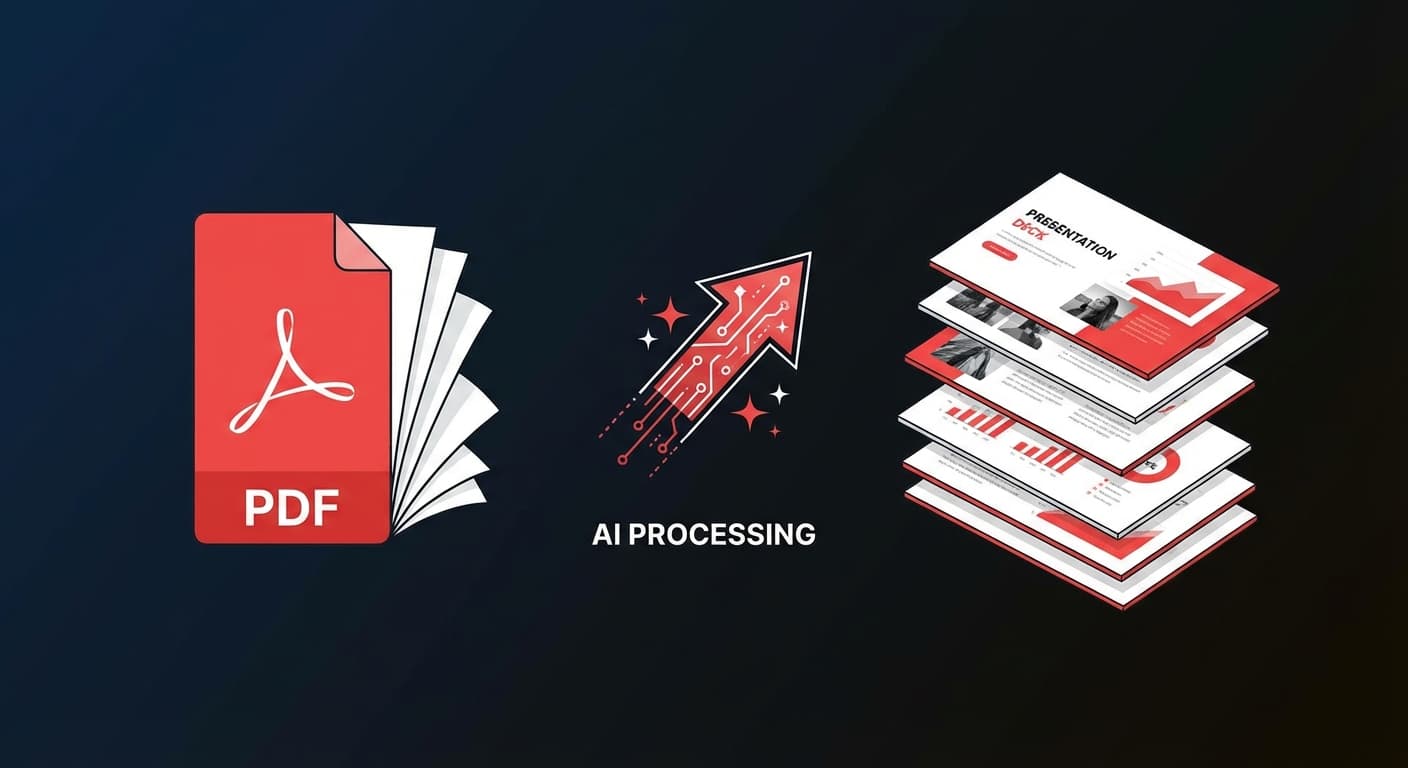
Converter documentos PDF em apresentações é uma das tarefas de produtividade mais comuns no mundo dos negócios. Seja um artigo de pesquisa, relatório trimestral ou proposta de projeto, o conteúdo já existe — só precisa se tornar slides.
Este guia mostra como transformar qualquer PDF em slides profissionais usando IA, economizando horas de copiar e colar manual e formatação.
Ferramentas tradicionais de conversão de PDF para PowerPoint simplesmente extraem texto e imagens — deixando você com slides feios e sem formatação que precisam de extensa limpeza manual. A conversão com IA é fundamentalmente diferente:
| Conversão Tradicional | Conversão com IA |
|---|---|
| Extrai blocos de texto brutos | Compreende a estrutura e o significado do conteúdo |
| Quebra a formatação | Cria novos layouts profissionais |
| Ignora a hierarquia visual | Gera visualizações apropriadas |
| Requer 1-2 horas de limpeza | Pronto para apresentar em minutos |
| Sem resumo de conteúdo | Destila pontos-chave automaticamente |
2Slides suporta a conversão de múltiplos formatos de documento em slides:
Isso faz do 2Slides o conversor de documentos em slides mais versátil disponível.
Navegue até o espaço de trabalho do 2Slides e selecione Criar Slides a Partir de Arquivo:
Você pode orientar a AI com um prompt personalizado:
Se você pular esta etapa, a AI identifica automaticamente o conteúdo mais importante e o estrutura de forma lógica.
Selecione entre mais de 15 modelos profissionais:
Ou use Criar Como Este para fazer upload de uma imagem de referência e fazer a AI corresponder exatamente a esse estilo de design.
| Configuração | Opções | Recomendação |
|---|---|---|
| Resolução | 512px, 1K, 2K, 4K | 2K para a maioria das apresentações |
| Proporção | 16:9, 4:3, 1:1, personalizado | 16:9 para apresentações padrão |
| Detalhe do Conteúdo | Conciso, Padrão | Conciso para executivos, Padrão para treinamento |
| Idioma | Mais de 22 idiomas | Corresponda ao seu público |
Clique em Gerar e aguarde seus slides. Tempo de processamento típico:
Baixe como PowerPoint (.pptx) para edição, ou exporte como PDF ou imagens.
Entrada: Artigo acadêmico de 25 páginas (PDF) Prompt: "Criar uma apresentação de 15 minutos para conferência destacando metodologia e principais descobertas" Resultado: 12 slides com fluxo claro de metodologia, visualização de resultados e conclusões
Entrada: Relatório de negócios trimestral de 40 páginas (PDF) Prompt: "Resumo executivo para conselho de administração, focar em receita, métricas de crescimento e iniciativas estratégicas" Resultado: 10 slides com destaques financeiros, gráficos e recomendações estratégicas
Entrada: Documentação de API (Markdown) Prompt: "Criar slides de treinamento de integração para novos desenvolvedores" Resultado: 15 slides com exemplos de código, diagramas de arquitetura e tutoriais passo a passo
Entrada: Dados de vendas (XLSX) Prompt: "Revisão mensal de vendas com divisões regionais e tendências" Resultado: 8 slides com gráficos gerados automaticamente, comparações e insights principais
Para fluxos de trabalho recorrentes de documentos para slides, use a API do 2Slides:
# Enviar e converter um PDF para slides
POST https://2slides.com/api/v1/slides/create-pdf-slides
Content-Type: application/json
Authorization: Bearer sk-2slides-xxx

{
  "fileUrl": "https://example.com/quarterly-report.pdf",
  "userInput": "Resumo executivo, máximo de 10 slides",
  "themeId": "your-theme-id",
  "mode": "async"
}
Isso permite pipelines automatizados: sempre que um novo relatório chega ao seu sistema, os slides são gerados automaticamente.
A IA funciona melhor com PDFs baseados em texto. Para documentos digitalizados, execute OCR primeiro (Adobe Acrobat, ferramentas online) para extrair o texto e depois converta.
O 2Slides processa documentos de até 100MB. Para documentos muito longos (mais de 100 páginas), recomendamos fornecer um prompt personalizado para focar a IA em seções específicas.
Via API, sim — você pode processar múltiplos documentos em lote. Na interface web, envie um arquivo por vez.
A IA identifica temas principais, pontos de dados, conclusões e itens acionáveis. Ela prioriza densidade de conteúdo e remove textos de preenchimento, apêndices e referências, a menos que sejam especificamente solicitados.
Transforme qualquer documento em slides profissionais — experimente o 2Slides e converta seu primeiro PDF em minutos.
Create stunning AI-powered presentations in seconds. Transform your ideas into professional slides with 2slides AI Agent.
Try For FreeYour AI Agent for slides. Save time, shine faster with intelligent presentation creation.




© 2026 2slides. All rights reserved.