2Slides Team
10 min read

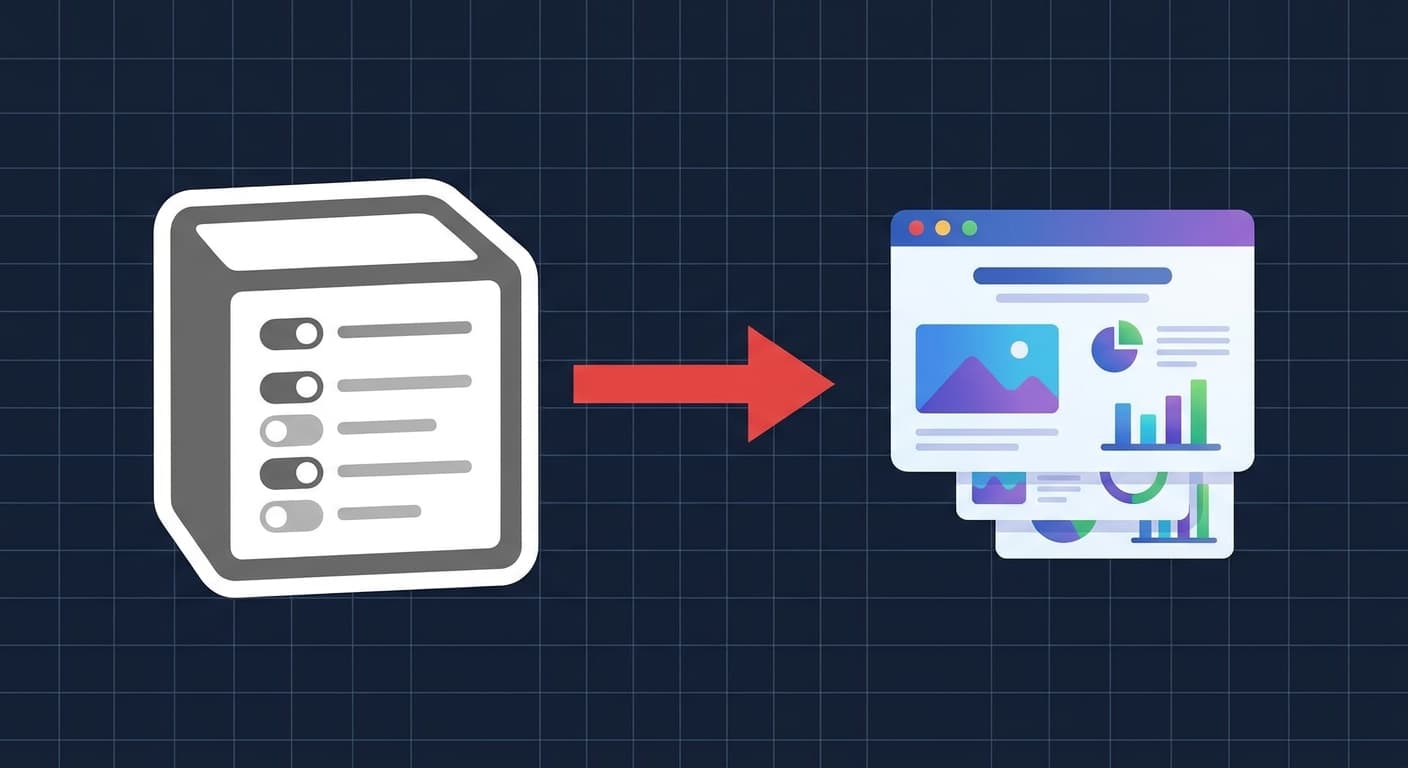
2026 Notion'dan sunuma iş akışının üç pratik yolu var: (1) Notion sayfasını 2Slides gibi bir yapay zeka slayt aracına kopyala-yapıştır — en hızlısı, 60 saniyede çalışır; (2) Notion sayfasını Markdown olarak dışa aktar ve 2Slides create-pdf-slides veya generate uç noktasına yükle — biçimlendirme için en temizi; (3) Zapier, Make veya n8n ile otomatikleştir, böylece her yeni Notion veritabanı satırı paylaşılan sürücünüzde bir sunuma dönüşür — müdahalesiz. Notion AI içeriği mükemmel şekilde taslak halinde hazırlar ancak .pptx dosyaları üretemez; onu özel bir slayt ajanıyla eşleştirmek bu boşluğu kapatır. Bu rehber üç yöntemi, kopyala-yapıştır modunu kullanırken yapıştıracağınız istemi, otomasyon yolu için gerçek bir Zapier tarifini ve dönüşümü bozan beş Notion'a özgü tuzağı (açılır listeler, senkronize bloklar, veritabanı ilişkileri) adım adım açıklıyor.
Taslağı zaten Notion'da hazırladıysanız, hiçbir şeyi yeniden yazmanıza gerek yok. Püf nokta hangi aktarım katmanını kullanacağınızı bilmektir — pano, Markdown dışa aktarma veya webhook — ve hangi istemin slayt oluşturucuyu Notion hiyerarşinize saygı göstermeye hazırladığını bilmektir. Bu makale, 2Slides ile Notion AI karşılaştırması makalemizin kuralcı versiyonudur: daha az görüş, daha fazla adım.
Notion AI, 2026 itibarıyla bir sayfayı özetleyebilir, farklı bir tonla yeniden yazabilir, kaba bir taslak oluşturabilir ve hatta bir Notion sayfası içinde "slayt benzeri" bir düzen önerebilir. Hala yapamadığı şey ise PowerPoint, Keynote veya Google Slides'ta düzenlenebilir şekiller, ana düzenler ve konuşmacı notlarıyla açılacak bir .pptx veya .pdf dosyası oluşturmaktır. Notion'ın AI'ı Notion'ın blok modeli içinde yaşar; sunum yazılımları ise OOXML'de (PowerPoint formatı) yaşar. İkisini birleştirmek için bir aracı gerekir.
Kullanmaya değer üç aracı vardır:
.md dosyası verir. Bunu bir API'ye besleyin.Her üçü de aynı çıktıda birleşir: düzenlenebilir bir sunum. Fark, hız ve tekrarlanabilirlik arasındadır.
Bu yol tek seferlik sunumlar için idealdir — bir Pazartesi standup toplantısı, bir müşteri önerisi, bir konferans konuşması.
Adımlar:
Cmd + A her şeyi seçer; Windows/Linux'ta Ctrl + A.Cmd + C veya Ctrl + C ile kopyalayın. Notion, pano yükünde başlık seviyelerini, madde imleri hiyerarşisini ve kod bloklarını korur.Bu taslaktan 10 slaytlık bir yatırımcı sunum destesi oluştur. Bölüm başlıklarını slayt başlığı olarak tut..pptx dosyasını indirin.Tipik 2.000 kelimelik bir Notion sayfasında bu işlem uçtan uca yaklaşık 45–70 saniye sürer. Elde edilen sunum PowerPoint, Keynote ve Google Slides'ta düzenlenebilir. İçeriği yeniden oluşturmadan farklı bir görünüm istiyorsanız, create-like-this endpoint'ini (aşağıda ele alınmıştır) veya uygulama içi "Change theme" düğmesini kullanın.
Notion iOS veya Android uygulamasında taslak hazırlayan mobil kullanıcılar için, mobilde AI ile sunum oluşturma konusundaki yardımcı kılavuzumuza bakın — yapıştırma akışı telefonlarda aynı şekilde çalışır.
Notion sayfasında yoğun biçimlendirme olduğunda — iç içe geçmiş toggle'lar, kod blokları, tablolar, callout'lar — Markdown export, yapıyı panodan daha güvenilir şekilde korur. Bu yöntem, programatik kontrol istiyorsanız (örneğin, sunumu bir CI pipeline'ından veya CLI aracından oluşturmak) da gereklidir.
Adım 1: Notion sayfasını Markdown olarak dışa aktarın.
Notion'da sayfa üzerindeki üç nokta menüsüne tıklayın, Export'u seçin, formatı Markdown & CSV olarak ayarlayın ve alt sayfaları düzleştirilmiş olarak istemiyorsanız "Include subpages" seçeneğinin işaretini kaldırın. Bir .md dosyası ve gömülü görselleri içeren bir .zip alacaksınız.
Adım 2: Markdown'ı 2Slides generate endpoint'ine POST edin.
curl -X POST https://2slides.com/api/v1/slides/generate \
  -H "Authorization: Bearer $SLIDES_API_KEY" \
  -H "Content-Type: application/json" \
  -d '{
    "content": "# Q1 Ürün İncelemesi\n\n## Kazanımlar\n- v3 onboarding yayınlandı\n- %22 aktivasyon artışı\n\n## Eksikler\n- Fatura migrasyonu iki hafta gecikti\n\n## Plan\n- v3.1 için kapsamı dondur\n- İkinci bir SRE işe al",
    "slideCount": 8,
    "theme": "corporate-modern",
    "language": "tr"
  }'
Yanıt bir jobId döndürür. status success olana kadar birkaç saniyede bir /api/v1/jobs/:id adresini poll edin:
curl https://2slides.com/api/v1/jobs/abc123 \
  -H "Authorization: Bearer $SLIDES_API_KEY"
Adım 3: Artifact'ları indirin.
Tamamlandığında, .pptx, slayt başına PNG önizlemeler ve (talep ettiyseniz) herhangi bir narrasyon sesini almak için job ID ile /api/v1/download-slides-pages-voices adresini çağırın.
Adım 4 (opsiyonel): Narrasyon ekleyin.
Sunum asenkron bir walkthrough olarak kullanılacaksa — dağıtık ekipler için yaygın bir Notion kullanım senaryosu — job ID ve bir ses preseti ile /api/v1/generate-narration adresini çağırın. Endpoint, .pptx içine geri ekleyebileceğiniz veya ayrı olarak barındırabileceğiniz slayt başına bir MP3 döndürür.
Adım 5 (opsiyonel): Önce bir tema bulun.
Görsel stili programatik olarak kontrol etmek istiyorsanız, önce /api/v1/themes/search?query=minimal+dark sorgusunu yapın, bir themeId alın ve bunu generate'e iletin. Ekipler, birçok sunumda marka tutarlılığını bu şekilde sağlar.
Notion'dan taranmış PDF'ler. Notion sayfanız bir PDF gömmüşse ve bu PDF'i doğrudan slaytlara dönüştürmek istiyorsanız (Markdown'ı atlayarak), bunun yerine /api/v1/create-pdf-slides kullanın — PDF byte'larını yükleyin, bir sunum alın. Bu, araştırma raporları veya Notion dışında yazılmış pitch memoları için kullanışlıdır.
Mevcut bir sunum stilini kopyalama. Beğendiğiniz bir sunumunuz olduğunda, jobId'sini yeni içerikle birlikte /api/v1/create-like-this'e iletin — endpoint, tema, düzen ritmi ve tipografi seçimlerini klonlarken yeni materyalinizi yerleştirir. Çoğu ekip haftalık rapor şablonunu bu şekilde standartlaştırır.
En yüksek verimlilik sağlayan iş akışı tamamen otomatiktir: bir Notion veritabanına eklenen her yeni kayıt, bir sunum oluşturulmasını tetikler ve tamamlanan .pptx dosyası paylaşılan bir sürücüye veya Slack kanalına düşer.
Zapier tarifi — "Yeni Notion veritabanı öğesi bir sunuma dönüşür"
New Database Item. Veritabanını seçin (örn. "Haftalık Raporlar" veya "Müşteri Brifingleri").Get Database Item. Sadece satır meta verilerini değil, tam sayfa içeriğini alın. Çoğu kişinin kaçırdığı adım budur — tetikleyici size yalnızca satır alanlarını verir.JSON.stringify içeren bir Code adımı veya bir metin şablonu kullanın.Authorization başlığında API anahtarınız ve content alanında Markdown ile https://2slides.com/api/v1/slides/generate adresine POST isteği gönderin.GET https://2slides.com/api/v1/jobs/{{jobId}} ve .pptx URL'sini ayrıştırın.Make (Integromat) ve n8n aynı temel öğeleri sunar. n8n'de, Notion node'unun "Get Page Content" işlemini kullanın, blokları Markdown'a dönüştüren bir Function node'undan geçirin, ardından /api/v1/slides/generate adresine istek gönderen bir HTTP Request node kullanın. n8n'in yerleşik yoklama modülü, iş durumu döngüsünü temiz bir şekilde yönetir.
Yeniden denemeler, hata yönetimi ve ekip bazında tema yönlendirme içeren daha derin bir otomasyon modeli için, Zapier ve 2Slides ile Haftalık Raporları Otomatikleştirin bölümüne bakın.
Yöntem 1 kullanırken Notion içeriğinizin üstüne yapıştırın. Bu prompt, 2Slides'ın Notion hiyerarşisine saygı duymasını ve mekanik bir otomatik düzen yerine bilinçli görünen bir sunum üretmesini sağlar.
Aşağıdaki Notion taslağını {N} slaytlık bir sunuma dönüştür.

Kurallar:
- H1 başlıklarını bölüm ayırıcıları olarak değerlendir.
- H2 başlıklarını tek tek slayt başlıkları olarak değerlendir.
- Her H2 altındaki madde grubunu tek bir slayt gövdesine dönüştür — altıdan fazla üst düzey madde içermediği sürece bir H2'yi birden fazla slayta bölme.
- Kod bloklarını tam haliyle tek tip aralıklı bir düzende ayrı bir slayta yerleştir.
- Genişletilebilir listeler için özet ve detayları iki sütunlu bir slayta düzleştir: özet solda, detaylar sağda.
- Slayt gövdesini kalabalıklaştıracak paragraf uzunluğundaki metinler için konuşmacı notları kullan.
- Harekete geçirici mesaj slaytıyla bitir; CTA'yı taslağın sonuç bölümünden çıkar.

Hedef Kitle: {hedef kitleyi tanımlayın}
Ton: {net / resmi / eğlenceli / teknik}
Marka: {renk veya tema anahtar kelimesi}

Taslak:
{Notion içeriğini buraya yapıştırın}{N}, hedef kitle, ton ve marka kısımlarını değiştirin. Kurallar bölümü asıl işi yapıyor — bu kurallar olmadan çoğu yapay zeka slayt aracı ya yetersiz doldurur (slayt başına bir madde) ya da aşırı kalabalık yapar (başlık slaytına on iki madde).
1. Açılır listeler panoda daraltılır. Toggle içeren bir sayfayı kopyaladığınızda, yalnızca görünür özet dahil edilir — kapalı toggle'ların içindeki iç içe detaylar atılır. Seçip kopyalamadan önce her toggle'ı genişletin veya kullanıcı arayüzü durumundan bağımsız olarak tam ağacı serileştiren Markdown dışa aktarma yolunu kullanın.
2. Senkronize bloklar içeriklerini çoğaltır. Üç sayfada görünen senkronize bir blok, üç sayfanın tamamını kopyalarsanız üç kez görünecektir. Ya bir kaynak kopyalayın ya da API'ye göndermeden önce bir ön işleme adımında tekrarları temizleyin.
3. Veritabanı ilişkileri düz ID'lere dönüşür.
Diğer sayfalara bağlanan Notion veritabanı özellikleri (ilişkiler, rollup'lar) bağlantılı sayfanın başlığı olarak değil, UUID olarak dışa aktarılır. Göndermeden önce, Notion API aracılığıyla (GET /v1/pages/{id}) ilişkiyi çözümleyin ve title özelliğini değiştirin. Zapier'ın Find Database Item eylemi bunu tek adımda yapar.
4. Denklemler ve LaTeX kayıplıdır.
Notion KaTeX'i satır içi oluşturur, ancak pano yükü size ham $$...$$ kaynağını verir. 2Slides, sınırlayıcıları korursanız bunu doğru şekilde oluşturur — ancak yalnızca matematik desteği bildiren temalarda. Uyumlu bir tema seçmek için /api/v1/themes/search?query=math veya scientific sorgulayın.
5. Notion'da barındırılan görsellerin süresi dolar. Notion'ın görsel CDN'i yaklaşık bir saat içinde süresi dolan imzalı URL'ler kullanır. Desteniz satır içi Notion görsellerine başvuruyorsa ve dışa aktarma ile oluşturma arasında çok uzun süre beklerseniz, getirme işlemi 403 hatası verecektir. Ya oluşturmadan hemen önce yeniden dışa aktarın ya da görselleri önce kendi CDN'nize yansıtın.
Notion AI doğrudan PowerPoint dosyaları oluşturabilir mi?
Hayır. Notion AI, Notion'a özgü içerik oluşturur — bloklar, özetler, yeniden yazmalar, ana hatlar. .pptx, .pdf veya Google Slides dosyaları üretmez. Üzerine bir slayt oluşturma katmanına ihtiyacınız vardır. 2Slides'taki /api/v1/slides/generate endpoint'i, tam olarak Notion Markdown dışa aktarımlarını kabul edecek şekilde tasarlanmıştır, bu nedenle süreç kısadır.
Notion'dan sunum dönüşümü ne kadar sürer?
1.500–2.500 kelimelik bir Notion sayfasından 8–12 slaytlık bir sunum için: kullanıcı arayüzü üzerinden yaklaşık 45 ila 90 saniye ve API üzerinden 30 ila 75 saniye (API bazı kullanıcı arayüzü işlemlerini atlar). Daha uzun sayfalar veya daha yüksek slayt sayıları kabaca doğrusal olarak ölçeklenir. /api/v1/generate-narration aracılığıyla anlatım, slayt başına 20–40 saniye daha ekler.
Notion tarzı içerik için hangi temayı seçmeliyim?
Notion sayfaları, hafif hiyerarşi ile metin ağırlıklı olma eğilimindedir. "Editorial," "minimal" veya "documentary" etiketli temalar genellikle Notion içeriğini sıkışık görünmeden işler. Teknik içerik için yoğun görselli temalardan kaçının — metin ile dikkat için yarışırlar. Önizleme için /api/v1/themes/search kullanın.
Otomasyon tarifleri Notion'ın yeni AI Blocks özellikleriyle çalışır mı? Evet. AI Blocks, API yanıtında normal Notion blokları olarak işlenir, bu nedenle Markdown dönüştürme adımı onları diğer paragraflar gibi ele alır. Tek uyarı: AI Block henüz çalıştırılmadıysa, boş bir yer tutucu olarak dışa aktarılır. Dışa aktarmadan önce AI Block'u tetikleyin.
Gömülü Figma, Loom veya Miro içeren Notion sayfalarına ne dersiniz? Gömülü içerikler, Markdown dışa aktarımında URL referansları haline gelir. 2Slides, harici gömülü içeriklerin otomatik ekran görüntüsünü almaz. Gömülü içeriği bir slaytta istiyorsanız, manuel olarak ekran görüntüsü alıp resim olarak yükleyin veya orijinale işaret eden bir QR kod / bağlantı slaytı ekleyin.
Notion en iyi modern içerik düzenleme platformudur — bir sunum aracı değildir ve onu bu role zorlamak kaybedilen bir mücadeledir. Daha hızlı yol, Notion'ı içerik katmanı olarak ve özel bir slayt ajanını çıktı katmanı olarak ele almak, ekibinize uygun aktarım yöntemiyle bağlamaktır: hız için pano, hassasiyet için Markdown, ölçek için webhook'lar.
Sadece bir şeyi hatırlayacaksanız: üç adımlı Markdown yolu (dışa aktar, /api/v1/slides/generate'a POST et, /api/v1/jobs/:id'yi sorgula) en sağlam üretim iş akışıdır ve yirmi satır koddan azdır. Geri kalan her şey — temalar, anlatım, create-like-this ile stilleri çoğaltma, create-pdf-slides ile PDF'leri işleme — bu çekirdek döngünün üzerine eklenen geliştirmelerdir. Önce döngüyü yayınlayın, cilayı ikinci sıraya bırakın.
Notion içeriğinizi 2Slides ücretsiz sürümüne yapıştırın — 30 saniyenin altında bir PowerPoint sunumu oluşturun.
Create stunning AI-powered presentations in seconds. Transform your ideas into professional slides with 2slides AI Agent.
Try For FreeSlaytlar için AI Ajanınız. Akıllı sunum oluşturma ile zaman kazanın, daha hızlı parlayın.




© 2026 2slides. Tüm hakları saklıdır.