2Slides Team
6 min read

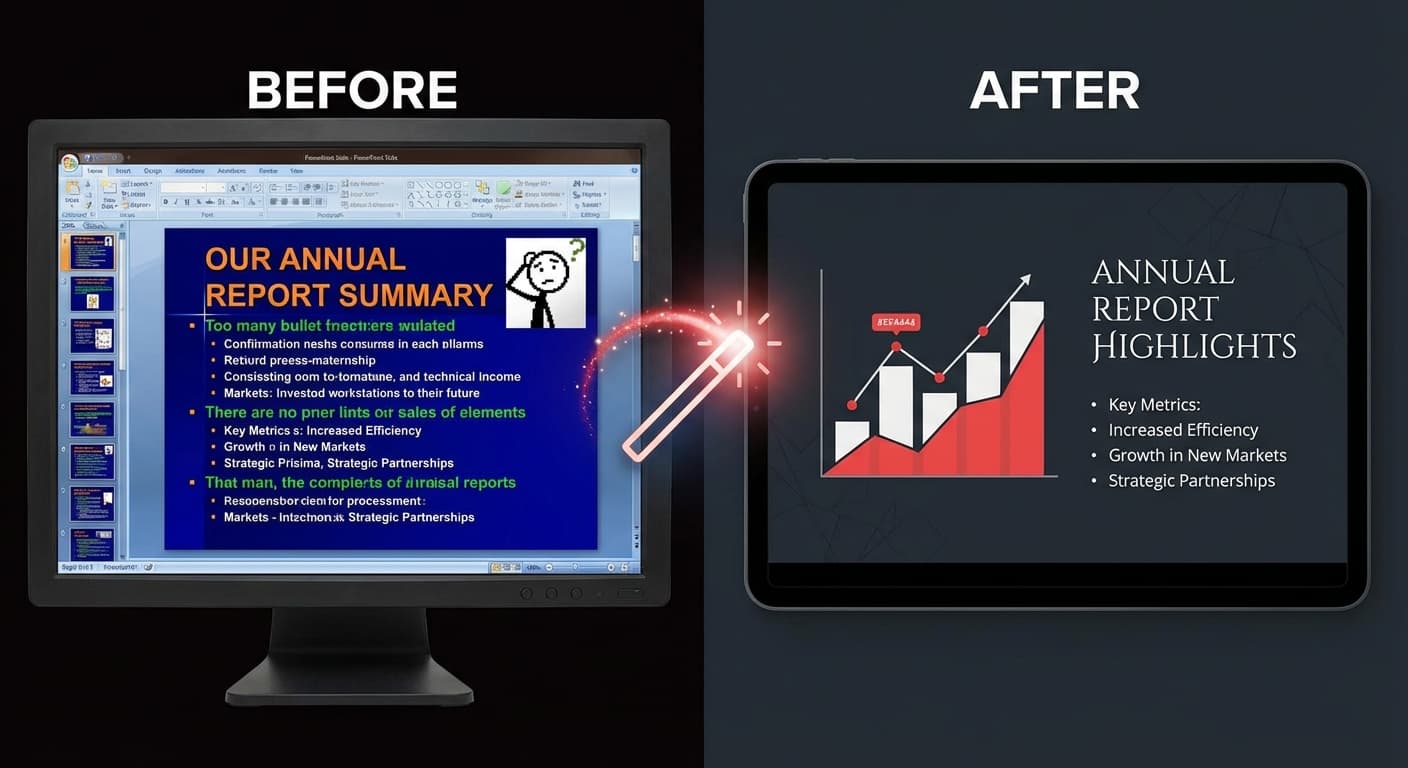
Todos hemos recibido esa presentación — la que tiene 12 puntos por diapositiva, imágenes prediseñadas de 2005, fuentes inconsistentes y colores que no combinan. Las diapositivas deficientes socavan las buenas ideas. La IA puede transformar presentaciones feas en profesionales en cuestión de minutos.
| Problema | Cómo se ve | Por qué sucede |
|---|---|---|
| Exceso de texto | Más de 200 palabras por diapositiva | El presentador usa las diapositivas como un documento |
| Diseño inconsistente | Diferentes fuentes, colores, diseños en cada diapositiva | Múltiples colaboradores, sin plantilla |
| Malas elecciones de color | Colores que chocan, bajo contraste | Falta de formación en diseño |
| Imágenes prediseñadas / fotos de stock | Visuales genéricos, anticuados | Uso de la biblioteca integrada de PowerPoint |
| Sin jerarquía visual | Todo del mismo tamaño y peso | Falta de comprensión del diseño de diapositivas |
La forma más rápida de transformar diapositivas feas:
"Rediseña esta presentación con diseños limpios y modernos.
Mantén todo el contenido clave pero reduce la densidad del texto.
Usa una jerarquía visual clara y tipografía profesional."Si tienes un diseño que te encanta (de otra presentación, un sitio web o Dribbble):
Para presentaciones que están en su mayoría bien, pero tienen diapositivas problemáticas:
Antes: 15 puntos, 3 tamaños de fuente, sin estructura visual Instrucción de IA (Prompt): "Reestructura en un marco estratégico 2x2 con solo los puntos clave" Después: Diseño de matriz limpio, 4 cuadrantes, 2-3 palabras por punto, tipografía profesional
Antes: Tabla de Excel en bruto pegada en PowerPoint, 50 filas de datos Instrucción de IA (Prompt): "Crea un resumen ejecutivo con las 5 métricas principales como números grandes, incluye flechas de tendencia" Después: 5 tarjetas KPI grandes con flechas, visualización de datos limpia, jerarquía clara
Antes: 20 diapositivas de 5 personas diferentes, cada diapositiva usa fuentes y colores distintos Instrucción de IA (Prompt): "Unifica el diseño en todas las diapositivas con un tema corporativo consistente" Después: Sistema de diseño único y cohesivo, tipografía consistente, paleta de colores uniforme
Cuando rediseñas con IA, esta aplica automáticamente principios de diseño profesionales:
Para estos casos, la edición manual en PowerPoint sigue siendo la mejor opción.
La IA reestructura y condensa tu contenido para una mejor presentación en diapositivas. Mantiene el significado, pero puede reformularlo para mayor claridad y brevedad. Siempre revisa el resultado para verificar su precisión.
Sí — rediseña diapositivas específicas por separado e insértalas de nuevo en tu presentación original en PowerPoint.
Sube el PDF completo. La IA maneja bien documentos largos, pero considera añadir una instrucción como "enfócate en las 15 diapositivas clave" para obtener el rediseño más impactante.
Exporta tus Google Slides como PDF (Archivo → Descargar → PDF), súbelas a 2Slides y luego descarga el .pptx rediseñado. Puedes importarlo de nuevo a Google Slides.
Transforma tus diapositivas feas — súbelas a 2Slides y ve la diferencia del antes y después.
Create stunning AI-powered presentations in seconds. Transform your ideas into professional slides with 2slides AI Agent.
Try For FreeYour AI Agent for slides. Save time, shine faster with intelligent presentation creation.




© 2026 2slides. All rights reserved.