2Slides Logo
Slides Narration Video Best Practices (2Slides + Remotion) — From One Prompt to a Ready-to-Share MP4
2Slides Team
4 min read

Slides narration video best practices cover

Slides Narration Video Best Practices (2Slides + Remotion) — From One Prompt to a Ready-to-Share MP4

Creating a slides narration video used to be a multi-hour workflow: outline → design slides → write a script → record voiceover → sync timing → render.

With 2Slides + Remotion, you can now do it in one prompt and get a clean MP4 in ~10 minutes—good enough for product explainers, training, and marketing content.

This guide is a practical checklist for shipping higher-quality narration videos consistently.


What you’re building

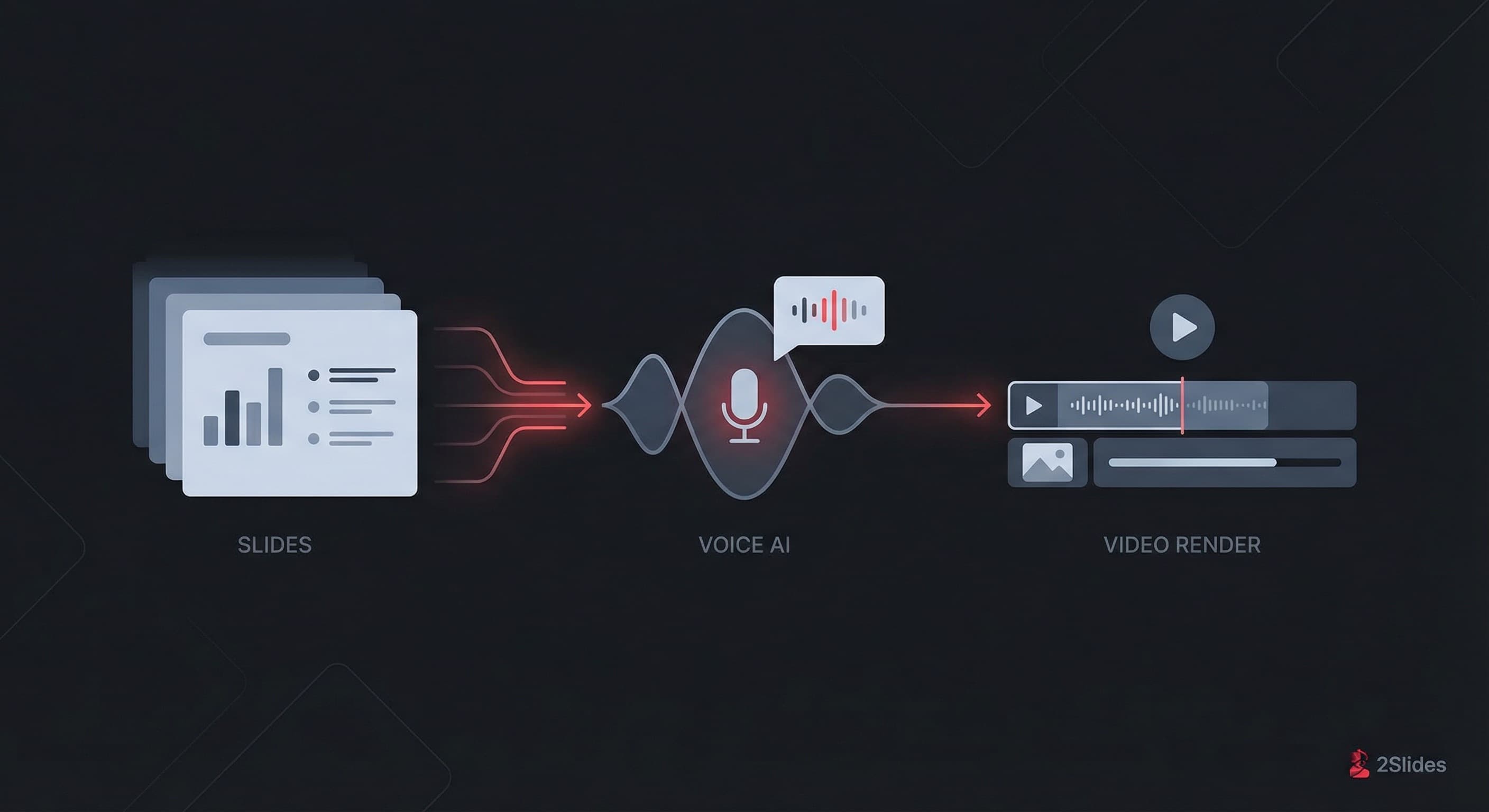
Slides + voice + Remotion pipeline diagram

A fully automated pipeline:

  1. Generate slides (pages/PDF) with 2Slides
  2. Generate narration audio with 2Slides
  3. Download assets (pages + audio zip)
  4. Create a Remotion project and sequence pages + audio
  5. Render MP4

The 80/20: what makes narration videos feel “professional”

1) Script first, slides second (even if AI generates both)

A narration video is audio-led. If the narration is clear and well-paced, viewers forgive simple slides. If narration is messy, no amount of design saves it.

Best practices

  • Keep sentences short (spoken language, not blog language)
  • One idea per slide
  • Avoid reading dense paragraphs verbatim

2) Timing rules that never fail

  • Target 12–18 seconds per slide for explainers
  • Narration pace: ~140–170 wpm (English)
  • If narration for a slide exceeds 25–30s, split the slide

3) Visual rhythm: treat slides like cuts

A narration video should feel like “cuts” in video editing.

  • Alternate layouts (text-heavy → visual → text)
  • Insert an occasional “breathing slide” (a big headline + 1 icon)
  • Use consistent margins and font hierarchy

4) Audio quality: loudness and silence

Even with great TTS, you still want predictable audio levels.

  • Normalize to a consistent loudness target (e.g. -16 LUFS for web)
  • Add 200–500ms padding between slides when switching topics
  • Avoid abrupt starts: use a short fade-in (50–100ms)

5) Accessibility: subtitles are a multiplier

If the workflow can produce captions, do it.

  • Burn-in captions for social distribution
  • Or ship a sidecar file

You can run this workflow from an agent environment (Claude Code / OpenClaw) by installing two skill packs:

Then use a single prompt like this (replace the topic):

Please help me create a slides narration video for the topic: [YOUR_TOPIC_CONTENT] - Create slides using 2Slides create pdf slides API; decide the slide pages count by AI. - Generate voice narration using 2Slides API. - Download slides pages and voices zip using 2Slides API. - Create a Remotion project and a slides narration video using pages and voices in sequence. - Render and output the video.

Real case demo: https://www.youtube.com/watch?v=_KswiI-Tgdc


Best practices for each pipeline step

Step 1) Slide generation (pages/PDF)

Goal: create slides that are readable at video resolution.

  • Prefer larger fonts, fewer bullets
  • Avoid tiny charts (video compression kills them)
  • Use 16:9 layouts, high contrast

Pro tip: ask the agent to choose slide count based on content length.

Step 2) Voice narration

Goal: match narration structure to slide boundaries.

  • Generate narration per slide (not one giant audio)
  • Enforce a consistent tone ("confident, calm, concise")
  • For acronyms/brand terms: provide pronunciation hints

Step 3) Asset packaging (zip download)

Goal: make rendering deterministic.

  • Name assets in order: , … and ,
  • Keep everything in a single folder for Remotion

Step 4) Remotion sequencing

Goal: correct sync, zero glitches.

  • Set slide duration from audio length + padding
  • Crossfade (optional): 6–12 frames is enough
  • Consider a subtle background music bed at -28 to -32 dB

Step 5) Rendering

Goal: export a share-ready MP4.

  • Use H.264, 1080p, ~8–12 Mbps for most use cases
  • Validate on mobile (common failure: text too small)

QA checklist (before you ship)

Slides narration video QA checklist

  • Does each slide’s headline match the narration?
  • Any slide stays on screen for >25–30s? Split it.
  • Any slide shows tiny text? Increase font size.
  • Any abrupt audio start? Add a short fade/padding.
  • Add subtitles for social distribution.

Next step

Try it with a real topic you care about (a product feature, onboarding flow, or weekly update). If you can turn one prompt into a consistent video pipeline, you can ship content faster than your competitors.

About 2Slides

Create stunning AI-powered presentations in seconds. Transform your ideas into professional slides with 2slides AI Agent.

Try For Free


